> ## Documentation Index
> Fetch the complete documentation index at: https://docs.hunch.dev/llms.txt
> Use this file to discover all available pages before exploring further.
# Airtable
> Connect your Airtable bases to Hunch
This guide will help you connect your Airtable bases to Hunch in just a few minutes.
***
## ✅ What You'll Need
* **Airtable Account** at [airtable.com](https://airtable.com)
* **Access** to create personal access tokens in your Airtable account
***
## 1️⃣ Create Personal Access Token
First, let's create a personal access token for Hunch to access your Airtable data:
### Step 1: Navigate to Token Creation
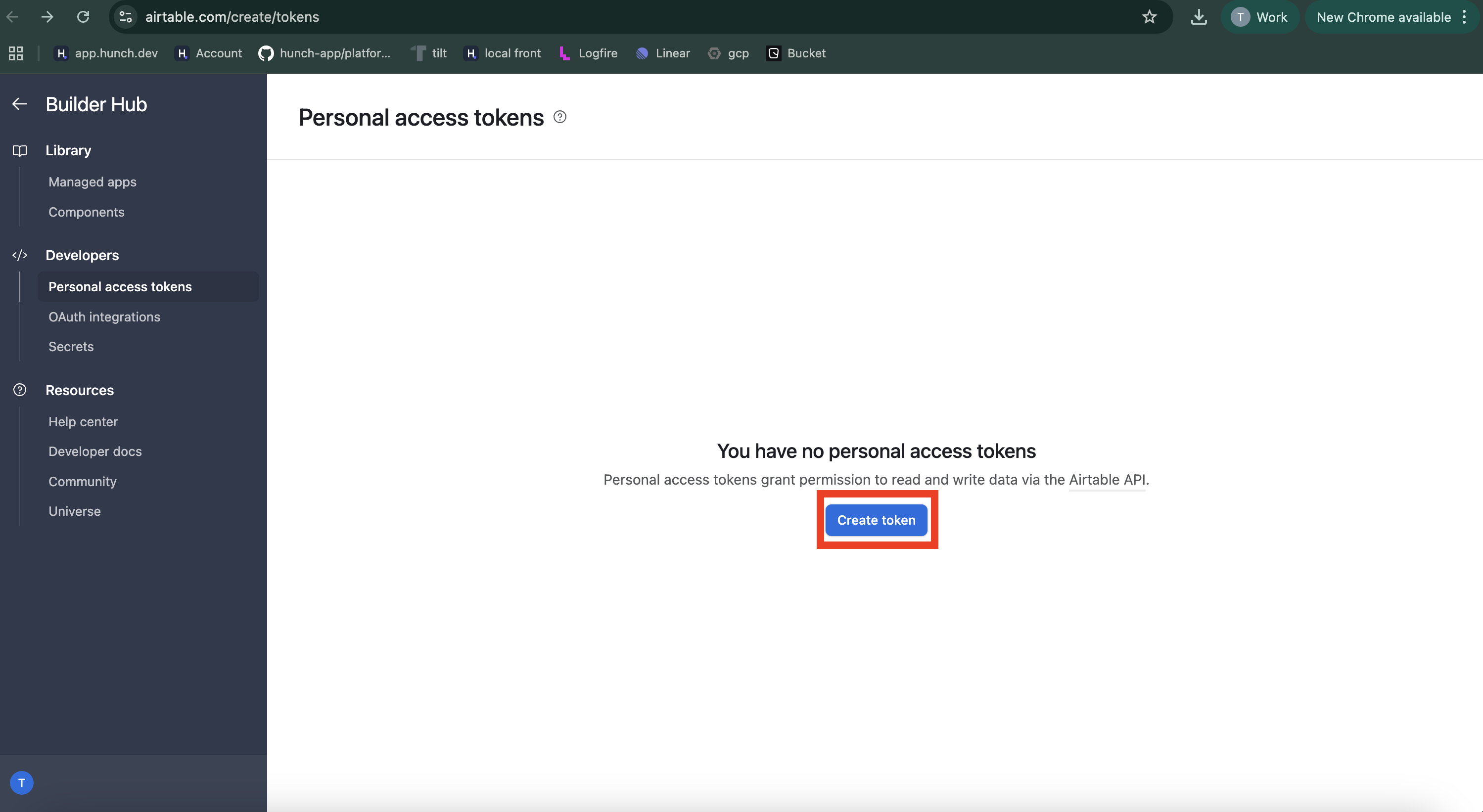
1. Go to [airtable.com/create/tokens](https://airtable.com/create/tokens)
2. Click the **"Create token"** button
 ### Step 2: Configure Token Settings
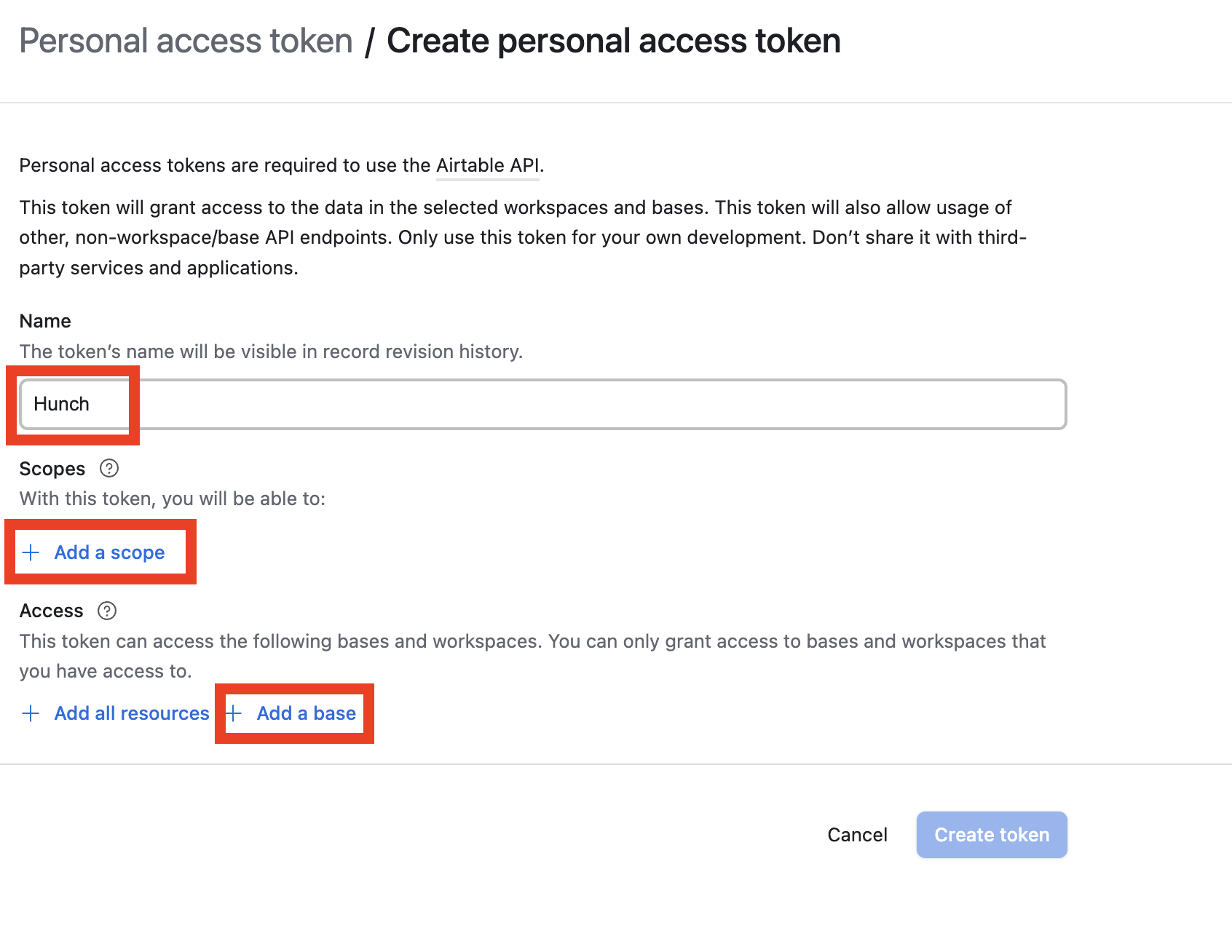
1. Fill in the **name field** with a descriptive name (e.g., "Hunch Integration")
2. Configure the **scopes** and **access** sections as shown below:
### Step 2: Configure Token Settings
1. Fill in the **name field** with a descriptive name (e.g., "Hunch Integration")
2. Configure the **scopes** and **access** sections as shown below:
 **Set Required Scopes:**
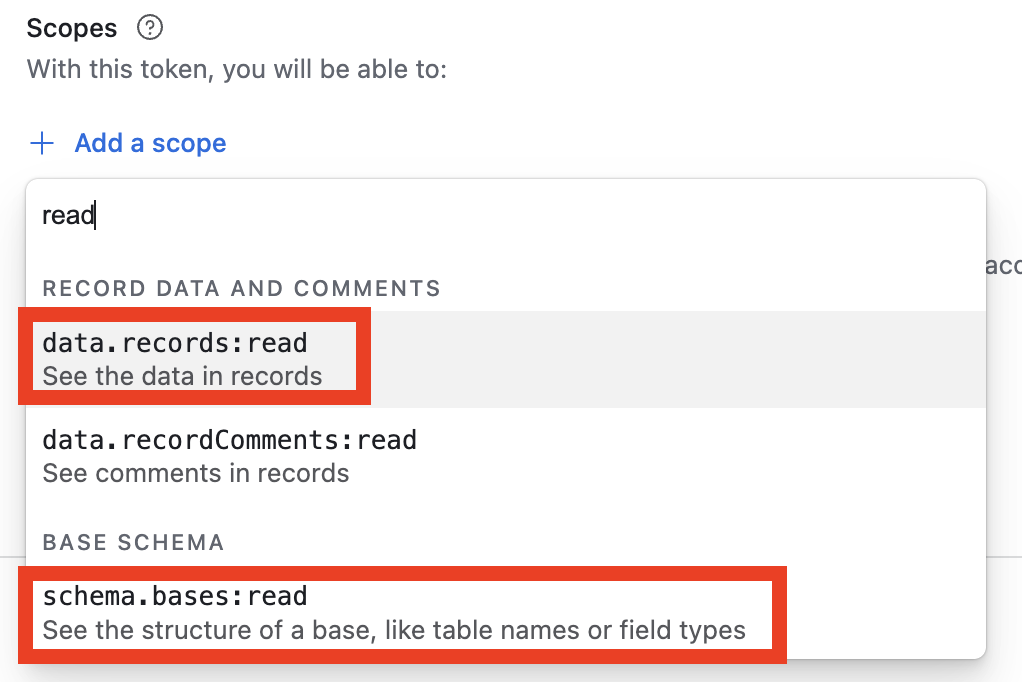
In the **Scopes** section:
1. Search for **"read"**
2. Select both:
* **`data.records:read`** - to read your table data
* **`schema.bases:read`** - to read your base structure
**Set Required Scopes:**
In the **Scopes** section:
1. Search for **"read"**
2. Select both:
* **`data.records:read`** - to read your table data
* **`schema.bases:read`** - to read your base structure
 **Configure Access Permissions:**
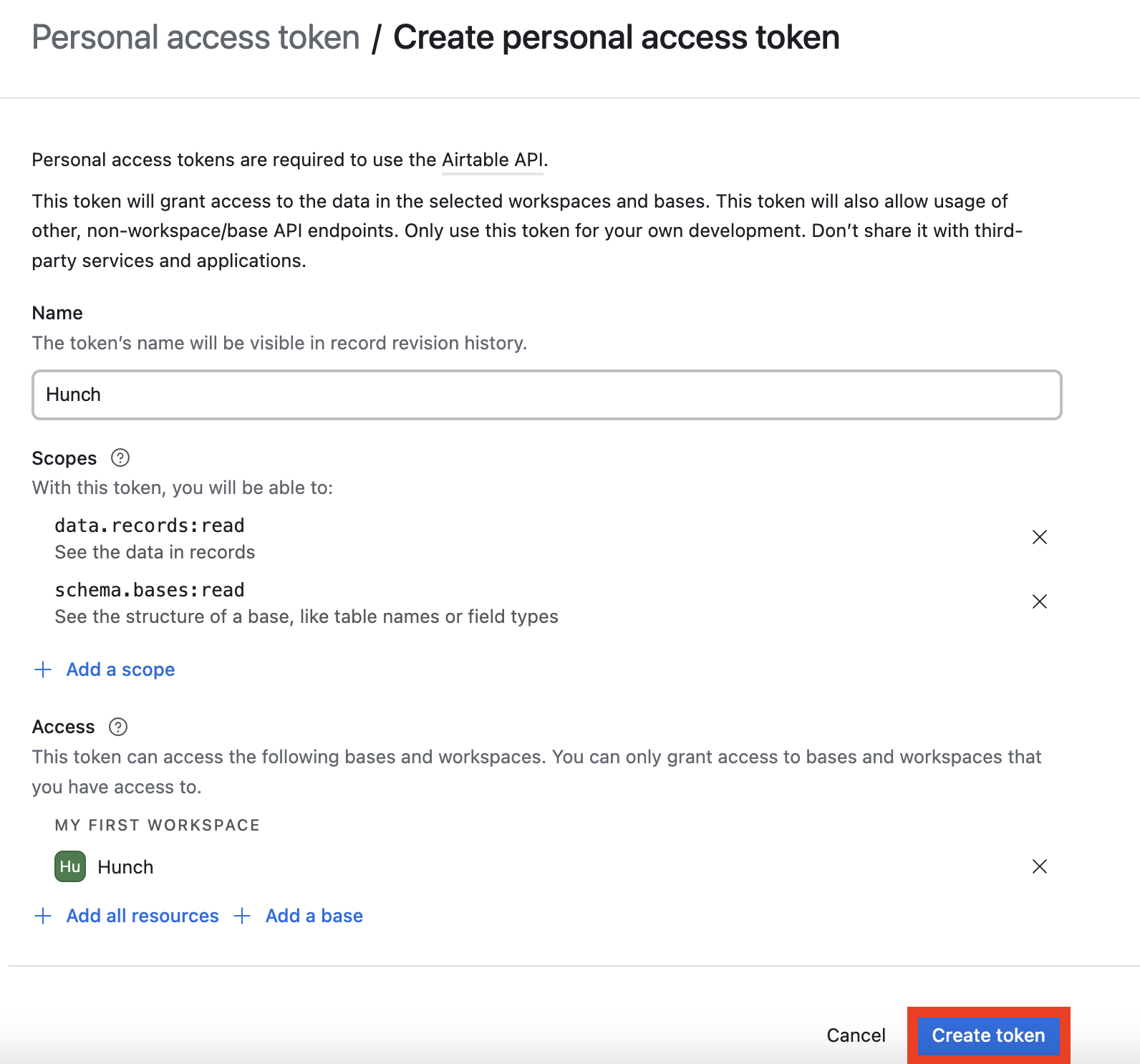
In the **Access** section, choose one of the following options:
**Option A: Specific Base(s)** (Recommended)
* Grant access to specific base(s) that you want Hunch to access
* This provides more granular control over your data
**Option B: All Resources**
* Click the left button to grant access to all your Airtable resources
* This gives Hunch access to all your bases
**Security Best Practice**: We recommend granting access only to specific
bases that you want to use with Hunch for better security control.
### Step 3: Generate and Copy Token
1. Click **"Create token"** to generate your personal access token
**Configure Access Permissions:**
In the **Access** section, choose one of the following options:
**Option A: Specific Base(s)** (Recommended)
* Grant access to specific base(s) that you want Hunch to access
* This provides more granular control over your data
**Option B: All Resources**
* Click the left button to grant access to all your Airtable resources
* This gives Hunch access to all your bases
**Security Best Practice**: We recommend granting access only to specific
bases that you want to use with Hunch for better security control.
### Step 3: Generate and Copy Token
1. Click **"Create token"** to generate your personal access token
 2. **Copy the token** and save it securely for the next step
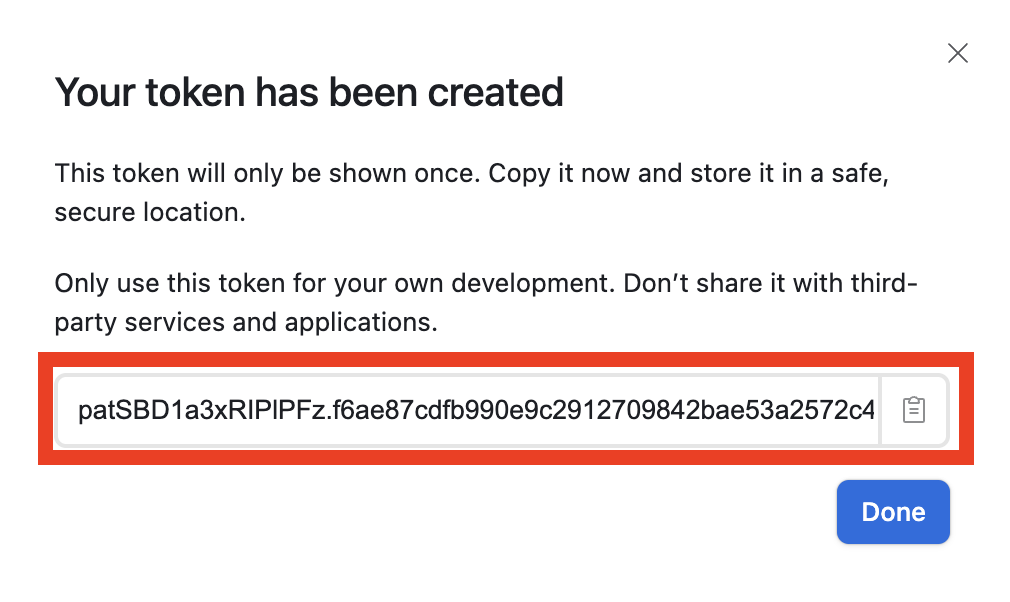 **Important**: Store your access token securely. You won't be able to see it
again after this step, so make sure to copy it before proceeding.
***
## 2️⃣ Connect to Hunch Platform
Now let's connect your Airtable account to Hunch:
### Step 1: Navigate to Hunch
1. Go to [app.hunch.dev](https://app.hunch.dev)
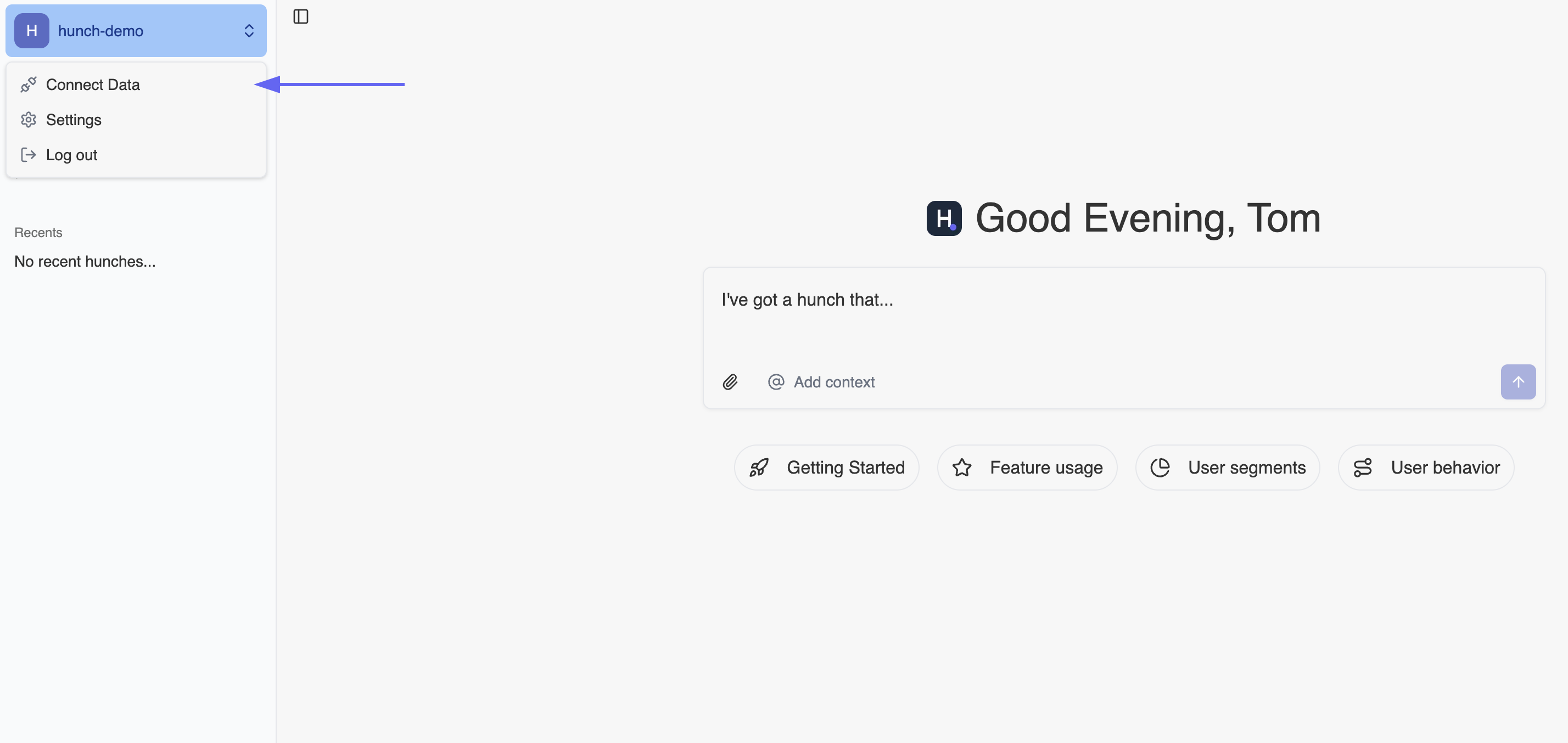
2. Click on the **Hunch logo** at the top-left corner
3. Select **"Connect your data"**
**Important**: Store your access token securely. You won't be able to see it
again after this step, so make sure to copy it before proceeding.
***
## 2️⃣ Connect to Hunch Platform
Now let's connect your Airtable account to Hunch:
### Step 1: Navigate to Hunch
1. Go to [app.hunch.dev](https://app.hunch.dev)
2. Click on the **Hunch logo** at the top-left corner
3. Select **"Connect your data"**
 ### Step 2: Configure Airtable Integration
1. Find the **Airtable** service and click **"Configure"** next to it
### Step 2: Configure Airtable Integration
1. Find the **Airtable** service and click **"Configure"** next to it
 2. Fill in the connection details:
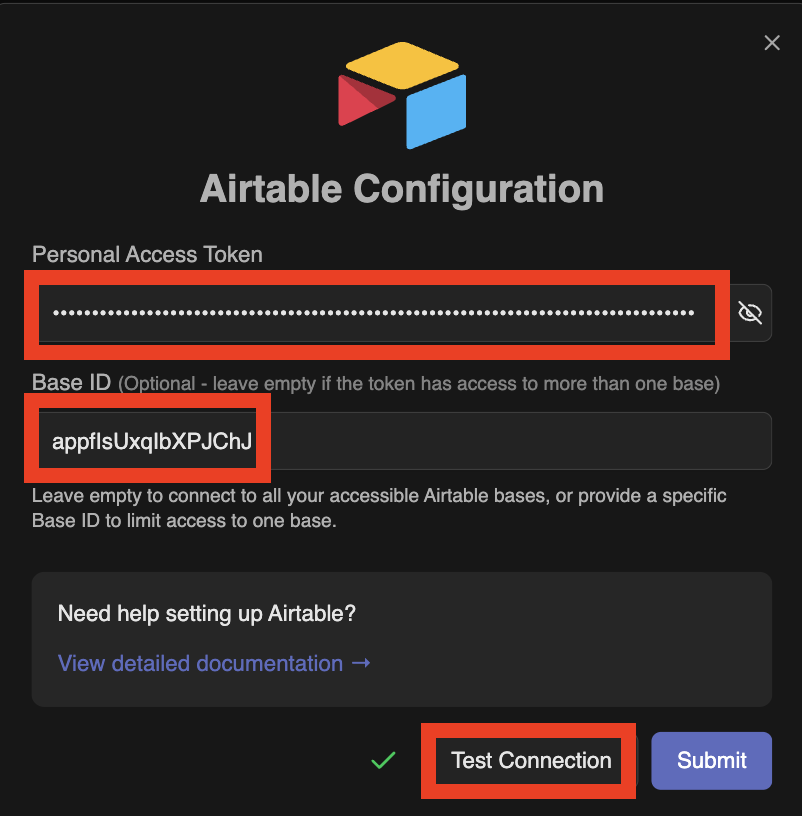 Fill in the following information: - **Personal Access Token**: Paste the token you copied from Step 1 - **Base ID** (Optional): If you granted access to specific bases, you can specify the base ID here. If left empty, Hunch will use all bases the token has access to.
### Step 3: Get Your Base ID (Optional)
If you want to specify a particular base, here's how to find your Base ID:
1. Go to the **Airtable app** and open your desired base
2. Look at the URL in your browser
3. Find the sequence that starts with **"app"** (e.g., `app1234567890abcdef`)
4. That's your Base ID!
Fill in the following information: - **Personal Access Token**: Paste the token you copied from Step 1 - **Base ID** (Optional): If you granted access to specific bases, you can specify the base ID here. If left empty, Hunch will use all bases the token has access to.
### Step 3: Get Your Base ID (Optional)
If you want to specify a particular base, here's how to find your Base ID:
1. Go to the **Airtable app** and open your desired base
2. Look at the URL in your browser
3. Find the sequence that starts with **"app"** (e.g., `app1234567890abcdef`)
4. That's your Base ID!
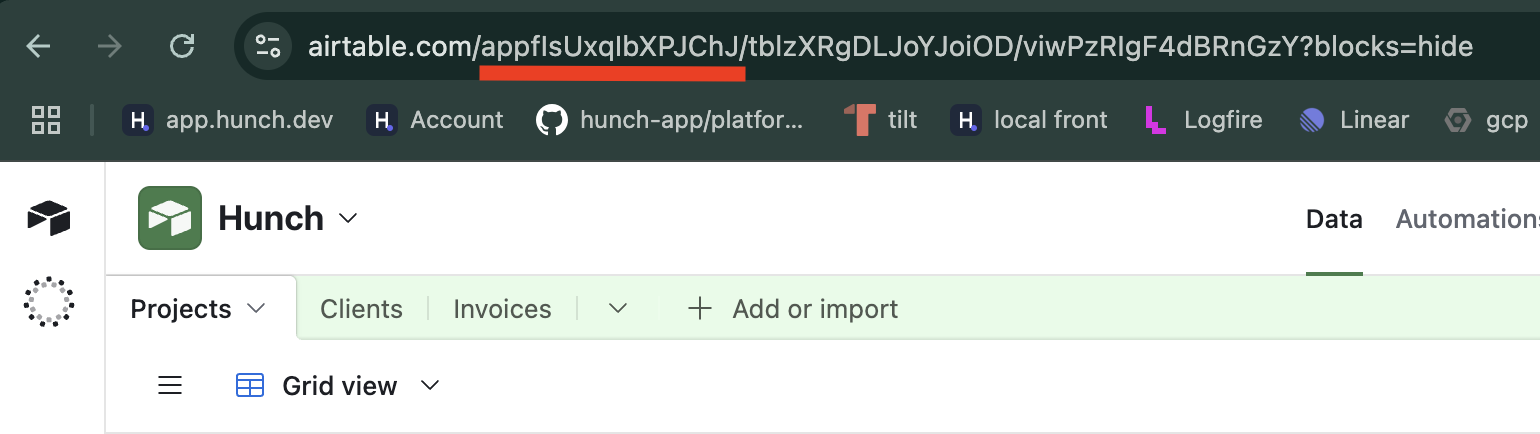 The URL format looks like: `https://airtable.com/app1234567890abcdef/...`
### Step 4: Test and Save Connection
1. Click **"Test Connection"** at the bottom of the form
2. Wait for the connection test to complete successfully - you'll see a green tick appear
3. Once the green tick appears confirming the connection is successful, click **"Submit"** to save your integration
***
## 🎉 You're All Set!
That's it! Your Airtable bases are now connected to Hunch. You can now ask questions about your Airtable database and Hunch will be able to access your data to provide insights and answers.
***
## 🚨 Troubleshooting
### Common Issues
**Connection Test Failed**
* Double-check that you copied the personal access token correctly
* Ensure there are no extra spaces or characters when pasting the token
* Verify that your token hasn't been revoked or expired
**Permission Errors**
* Make sure you selected the required scopes: `data.records:read` and `schema.bases:read`
* Check that your token has access to the base you're trying to connect
* Verify that your Airtable account has the necessary permissions for the bases
**Base ID Issues**
* If you specified a Base ID, ensure it's correct and starts with "app"
* The Base ID should be exactly as it appears in the URL (case-sensitive)
* If you're unsure about the Base ID, try leaving it empty to access all available bases
**Token Problems**
* If your token is lost, you'll need to create a new one from the Airtable token creation page
* Ensure your Airtable account is in good standing and has API access enabled
* Check that you're logged into the correct Airtable account
***
## 📞 Need Help?
If you encounter any issues during setup, our support team is here to help:
* **Email**: [support@hunch.dev](mailto:support@hunch.dev)
* **Slack Community**: [Join our Slack](https://join.slack.com/t/hunchdevcommunity/shared_invite/zt-38sihc6ph-zwQUOA4OD5TUIdDXxpjK0w)
We typically respond within a few hours during business hours.
The URL format looks like: `https://airtable.com/app1234567890abcdef/...`
### Step 4: Test and Save Connection
1. Click **"Test Connection"** at the bottom of the form
2. Wait for the connection test to complete successfully - you'll see a green tick appear
3. Once the green tick appears confirming the connection is successful, click **"Submit"** to save your integration
***
## 🎉 You're All Set!
That's it! Your Airtable bases are now connected to Hunch. You can now ask questions about your Airtable database and Hunch will be able to access your data to provide insights and answers.
***
## 🚨 Troubleshooting
### Common Issues
**Connection Test Failed**
* Double-check that you copied the personal access token correctly
* Ensure there are no extra spaces or characters when pasting the token
* Verify that your token hasn't been revoked or expired
**Permission Errors**
* Make sure you selected the required scopes: `data.records:read` and `schema.bases:read`
* Check that your token has access to the base you're trying to connect
* Verify that your Airtable account has the necessary permissions for the bases
**Base ID Issues**
* If you specified a Base ID, ensure it's correct and starts with "app"
* The Base ID should be exactly as it appears in the URL (case-sensitive)
* If you're unsure about the Base ID, try leaving it empty to access all available bases
**Token Problems**
* If your token is lost, you'll need to create a new one from the Airtable token creation page
* Ensure your Airtable account is in good standing and has API access enabled
* Check that you're logged into the correct Airtable account
***
## 📞 Need Help?
If you encounter any issues during setup, our support team is here to help:
* **Email**: [support@hunch.dev](mailto:support@hunch.dev)
* **Slack Community**: [Join our Slack](https://join.slack.com/t/hunchdevcommunity/shared_invite/zt-38sihc6ph-zwQUOA4OD5TUIdDXxpjK0w)
We typically respond within a few hours during business hours.