> ## Documentation Index
> Fetch the complete documentation index at: https://docs.hunch.dev/llms.txt
> Use this file to discover all available pages before exploring further.
# BigQuery
> Connect your BigQuery account to Hunch
This guide will help you securely connect your BigQuery account to Hunch using Google Cloud Platform Service Account in just a few minutes.
***
## ✅ What You'll Need
* **Google Account** with access to BigQuery
* **Google Project ID**
***
## 1️⃣ Prepare Your Google Account
1. Make sure you have a Google account with access to BigQuery
2. Ensure you have the necessary permissions to access BigQuery data
3. Create a Google Service Account:
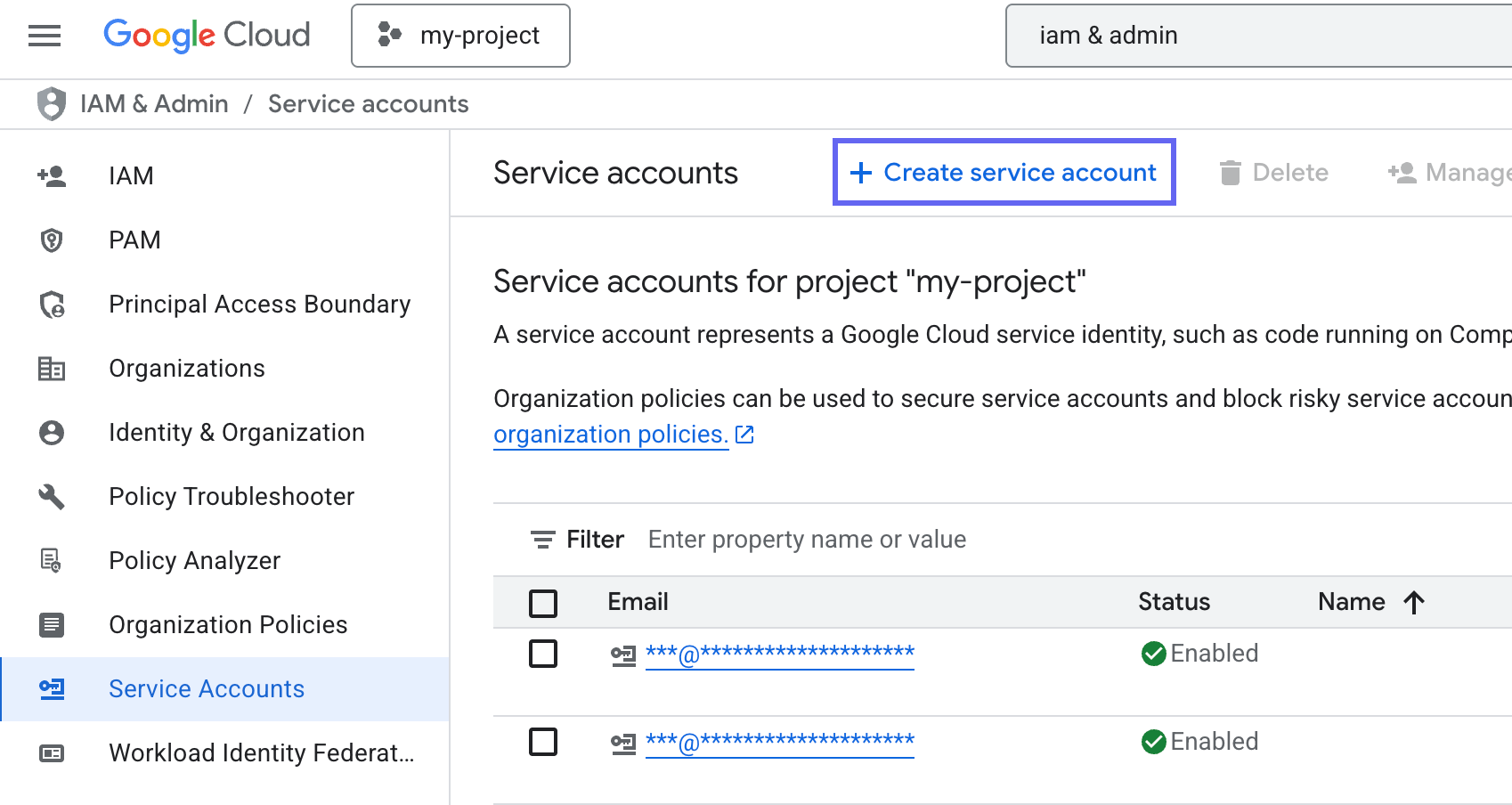
* Go to **Google Cloud Platform Console** > **IAM & Admin** > **Service Accounts**
* Click **+ CREATE SERVICE ACCOUNT**
{" "}
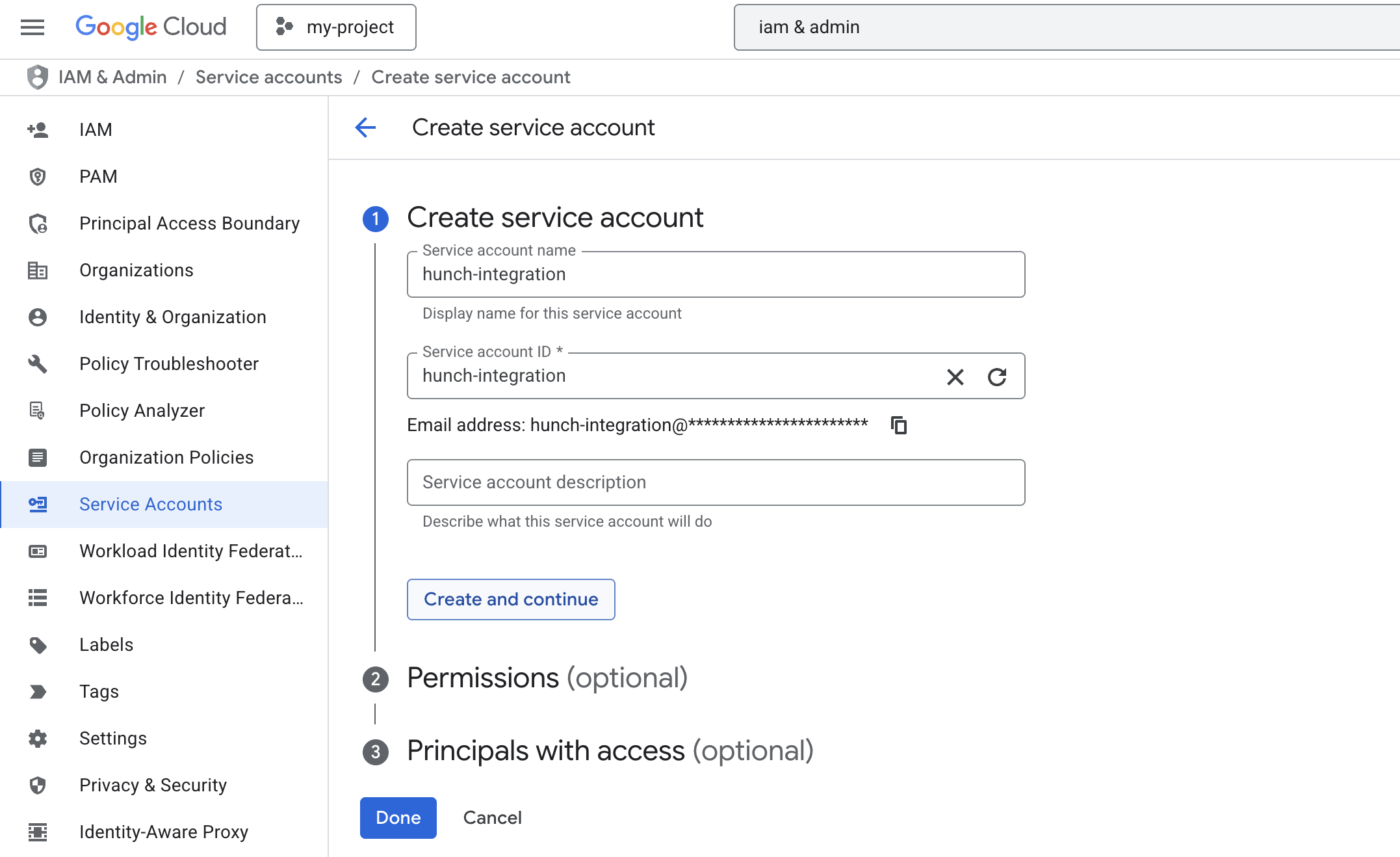
 * Enter a name for your service account (e.g., "hunch-integration")
* Click **CREATE AND CONTINUE**
{" "}
* Enter a name for your service account (e.g., "hunch-integration")
* Click **CREATE AND CONTINUE**
{" "}
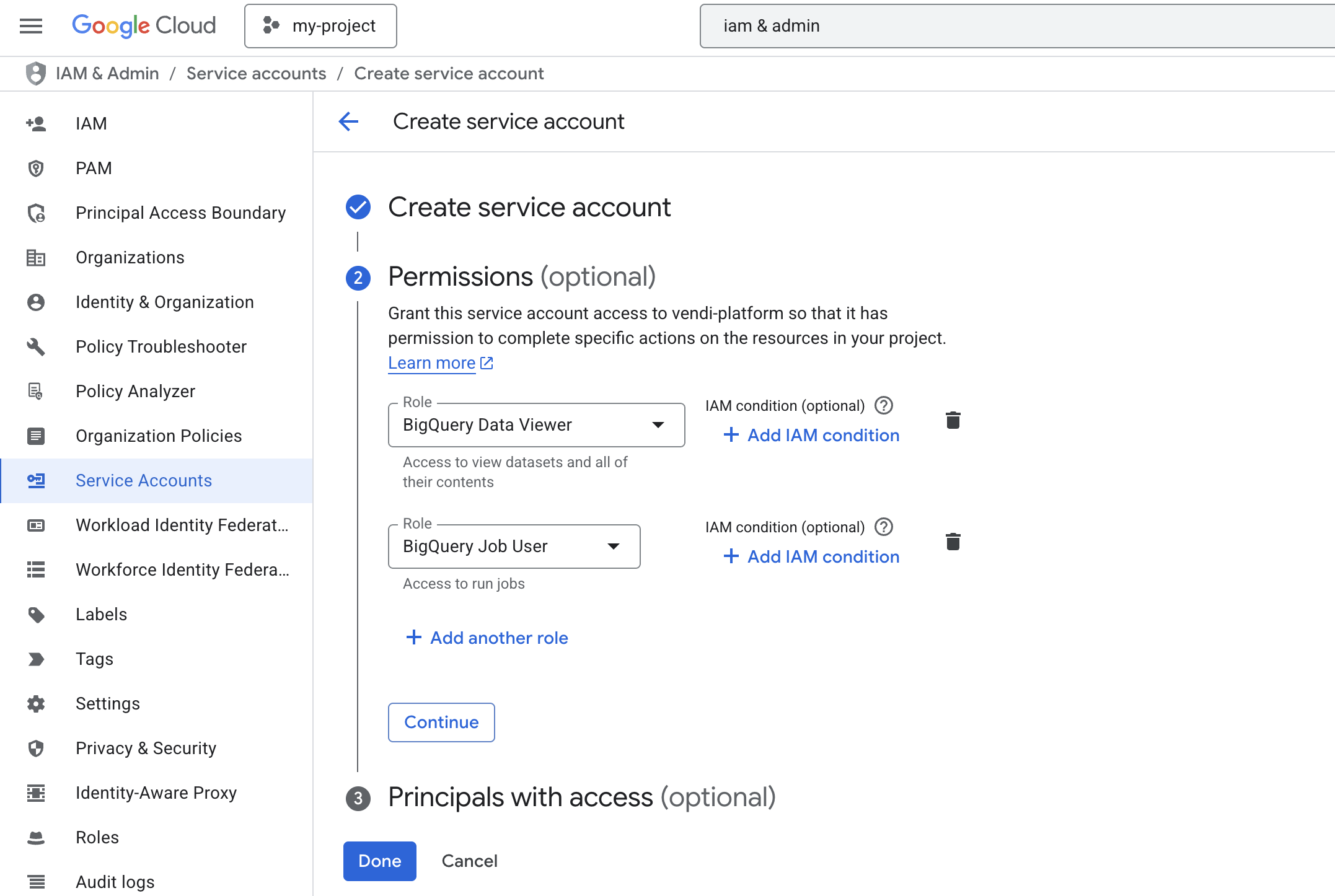
 * Click the **Select a role** dropdown
* In the search box, type "BigQuery Data Viewer" > Select **BigQuery Data Viewer**
* Click **ADD ANOTHER ROLE**
* Click the **Select a role** dropdown again
* In the search box, type "BigQuery Job User" > Select **BigQuery Job User**
* Click **CONTINUE** and then **DONE**
{" "}
* Click the **Select a role** dropdown
* In the search box, type "BigQuery Data Viewer" > Select **BigQuery Data Viewer**
* Click **ADD ANOTHER ROLE**
* Click the **Select a role** dropdown again
* In the search box, type "BigQuery Job User" > Select **BigQuery Job User**
* Click **CONTINUE** and then **DONE**
{" "}
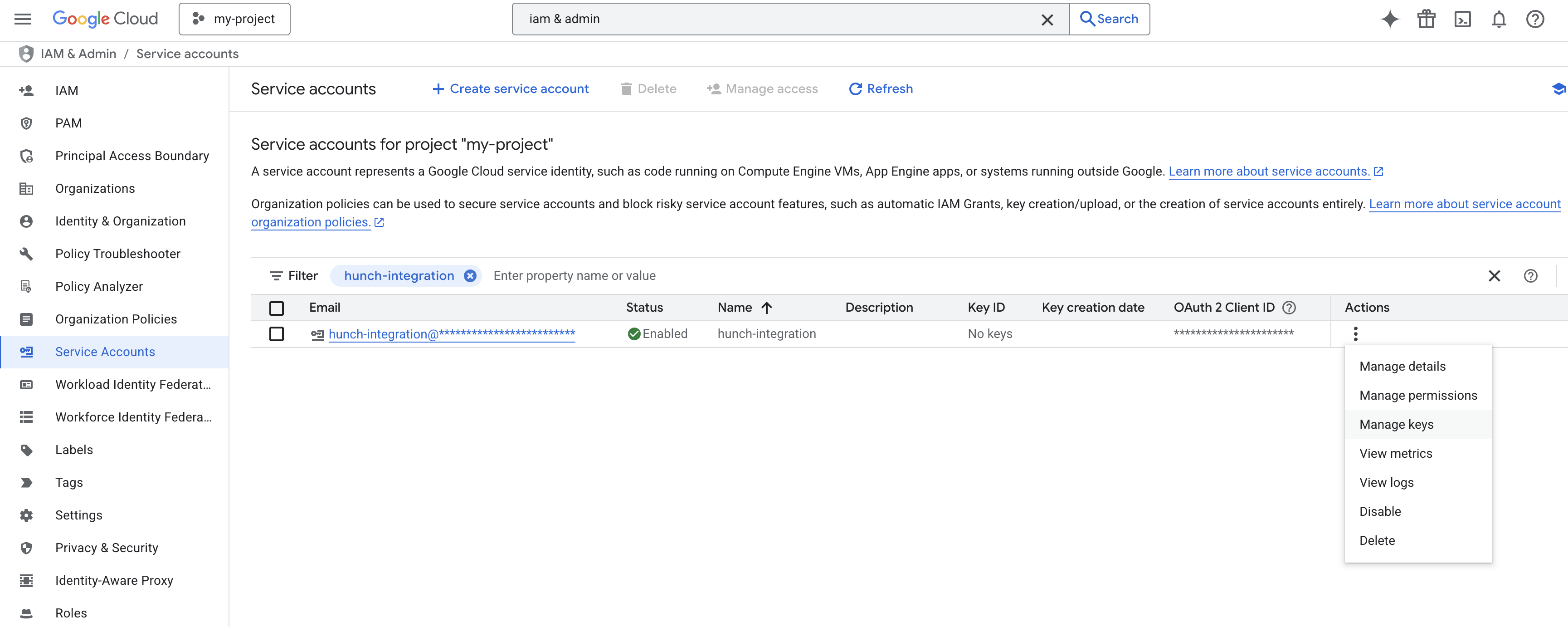
 4. Generate and download the service account key:
* Find your new service account in the list
* Click the three dots menu (⋮) > **Manage keys**
{" "}
4. Generate and download the service account key:
* Find your new service account in the list
* Click the three dots menu (⋮) > **Manage keys**
{" "}
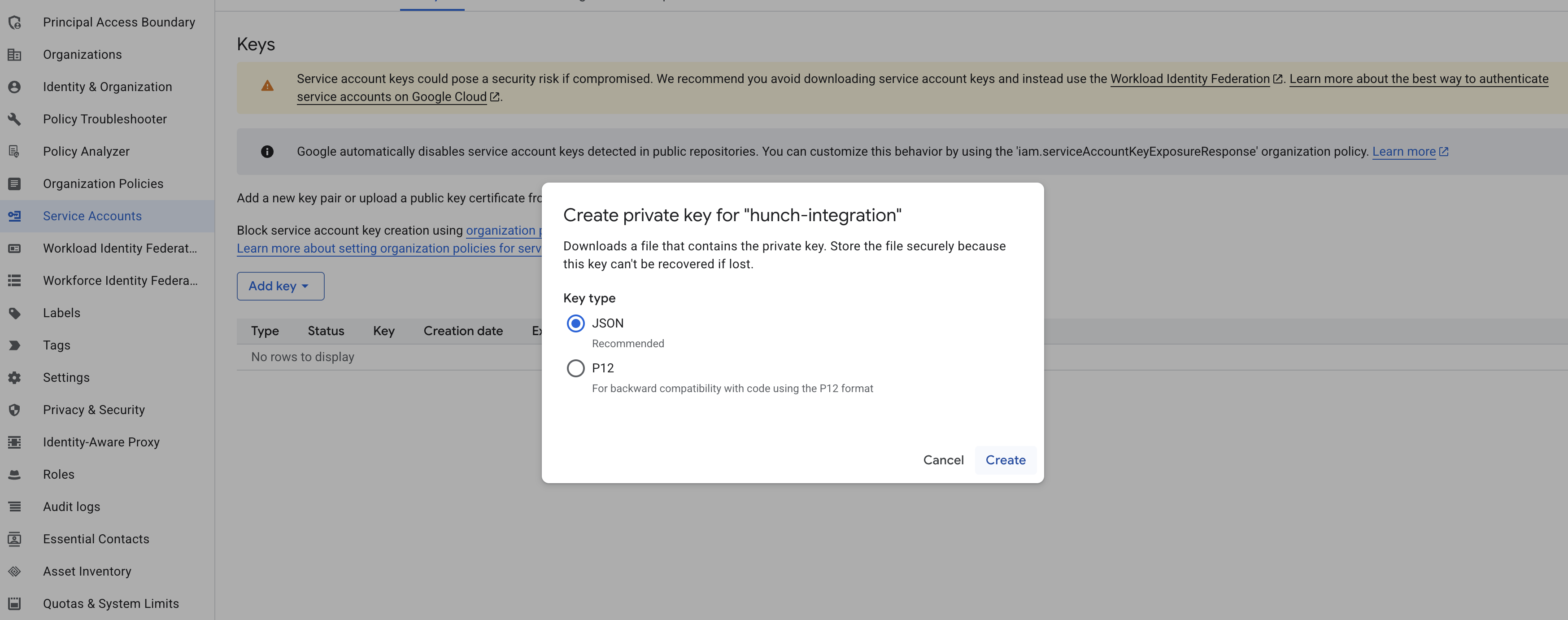
 * Click **ADD KEY** > **Create new key**
* Choose **JSON** format
* Click **CREATE** to download the key file
* Keep this file secure - you'll need it for the next steps
{" "}
* Click **ADD KEY** > **Create new key**
* Choose **JSON** format
* Click **CREATE** to download the key file
* Keep this file secure - you'll need it for the next steps
{" "}
 [For more details, see Google Cloud Platform documentation -->](https://cloud.google.com/iam/docs/service-accounts-create#console)
***
## 2️⃣ Connect BigQuery to Hunch
1. Log into [Hunch.dev](https://app.hunch.dev/login)
2. Click on your organization name > **Connect Data**
[For more details, see Google Cloud Platform documentation -->](https://cloud.google.com/iam/docs/service-accounts-create#console)
***
## 2️⃣ Connect BigQuery to Hunch
1. Log into [Hunch.dev](https://app.hunch.dev/login)
2. Click on your organization name > **Connect Data**
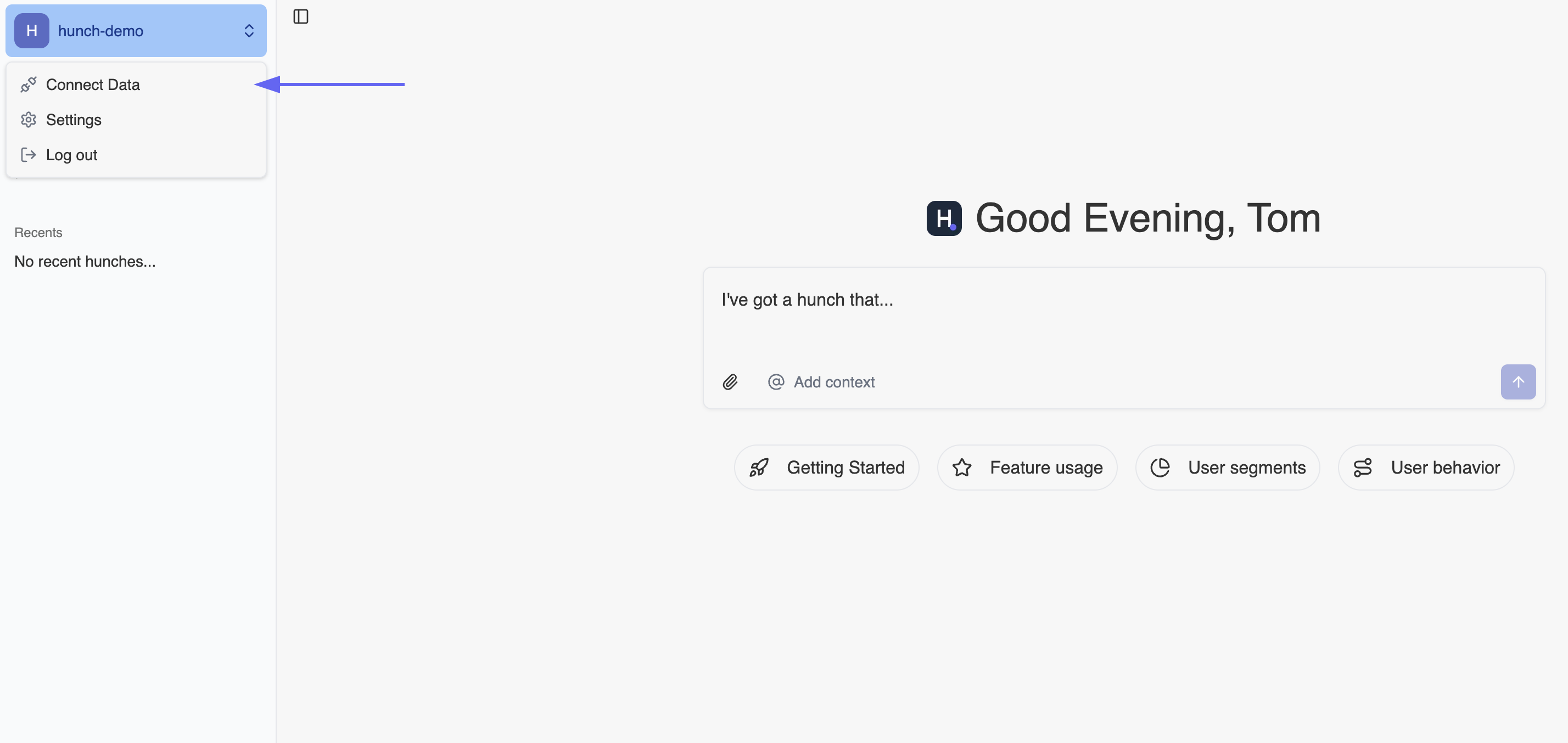 3. Click **Configure** on the BigQuery row
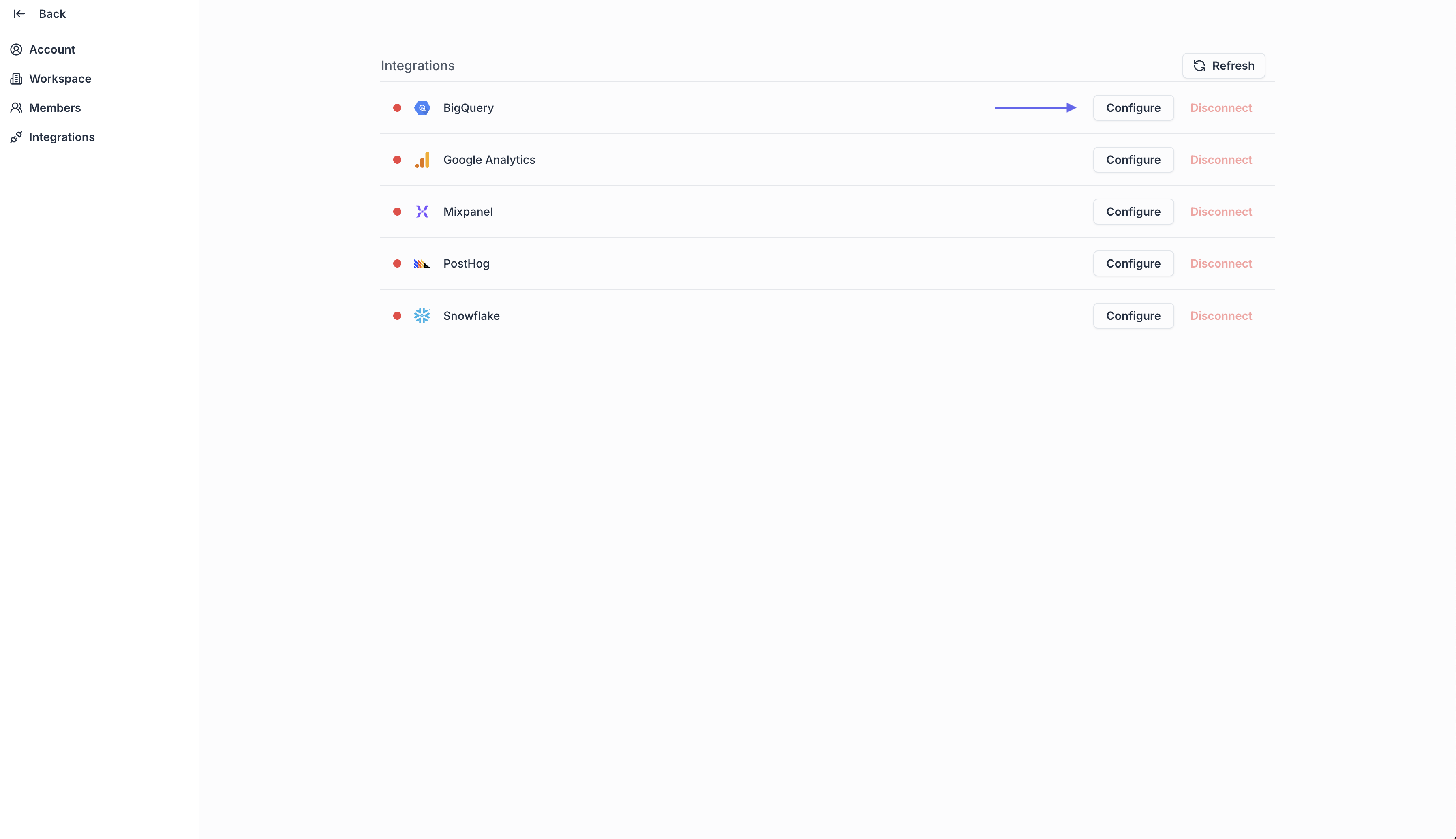 4. Open the Service Account key file from step 1.4, copy its content and paste it under the **BigQuery Service Account JSON key** field
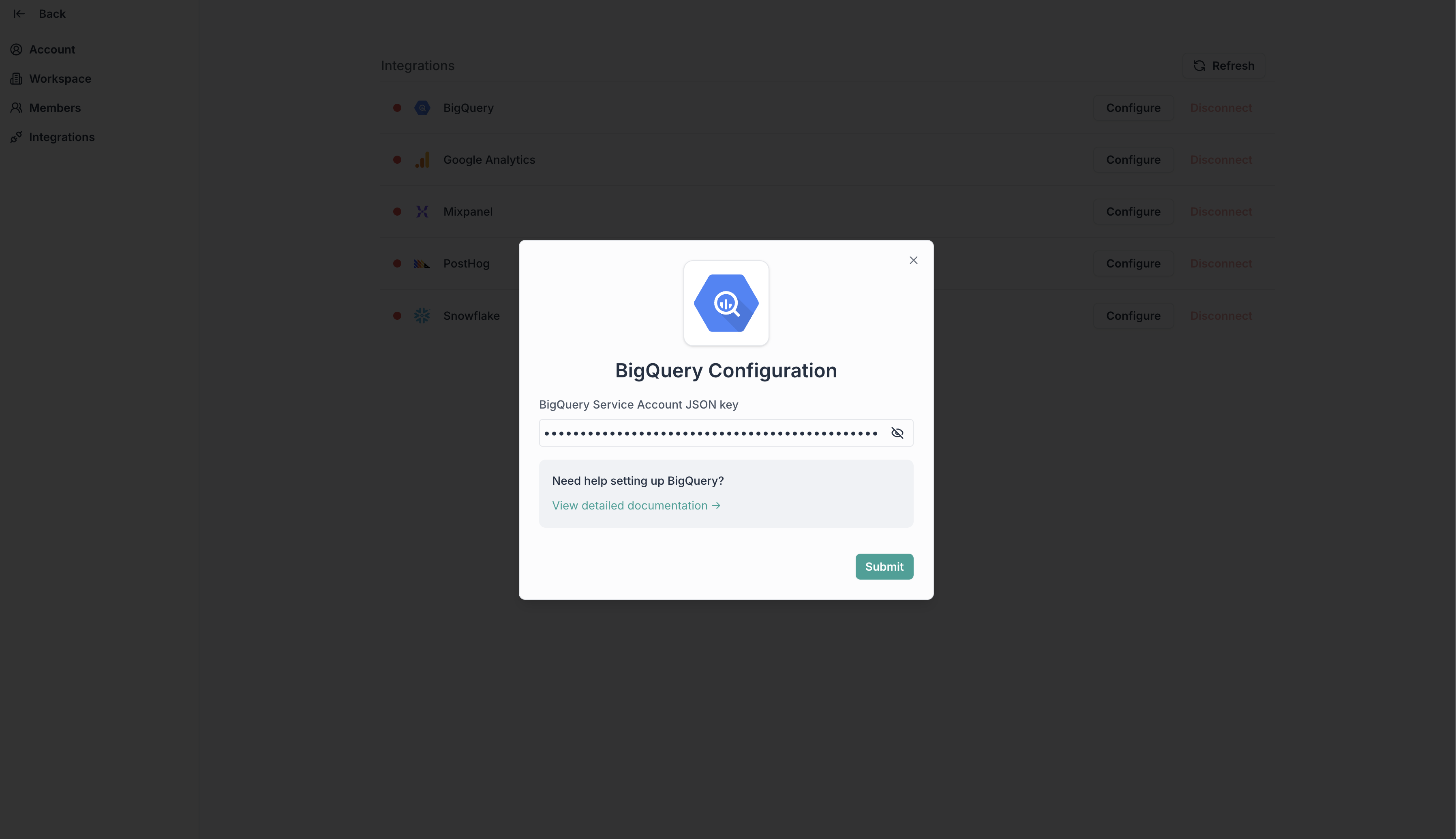 5. Click **Submit**
***
## 🎉 Done! You're now connected
Need help? Ping us at [support@hunch.dev](mailto:support@hunch.dev)
***
## 🔒 Security Note
> Hunch uses Google Service Account keys for secure access to your BigQuery data. Your credentials are encrypted and stored securely, and we only request the minimum permissions needed to access your BigQuery data (BigQuery Data Viewer and BigQuery Job User roles).
5. Click **Submit**
***
## 🎉 Done! You're now connected
Need help? Ping us at [support@hunch.dev](mailto:support@hunch.dev)
***
## 🔒 Security Note
> Hunch uses Google Service Account keys for secure access to your BigQuery data. Your credentials are encrypted and stored securely, and we only request the minimum permissions needed to access your BigQuery data (BigQuery Data Viewer and BigQuery Job User roles).