> ## Documentation Index
> Fetch the complete documentation index at: https://docs.hunch.dev/llms.txt
> Use this file to discover all available pages before exploring further.
# ClickHouse
> Connect your ClickHouse database to Hunch
This guide will help you connect your ClickHouse Cloud service to Hunch in just a few minutes.
***
## ✅ What You'll Need
* **ClickHouse Cloud Account** at [clickhouse.com](https://clickhouse.com)
* **Access to your ClickHouse service**
***
## 1️⃣ Get Your ClickHouse Connection Details
First, let's gather your connection information from ClickHouse Cloud:
### Step 1: Navigate to ClickHouse Cloud
1. Go to [clickhouse.com](https://clickhouse.com) and log into your account
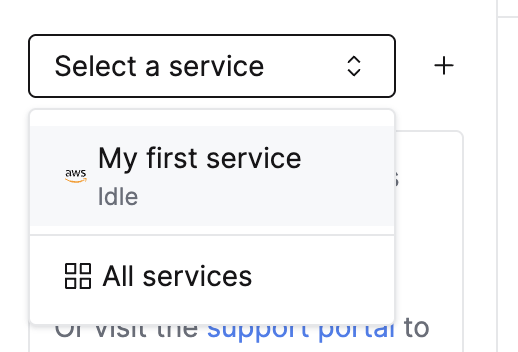
2. Select your desired ClickHouse service from the dashboard
 ### Step 2: Access Connection Details
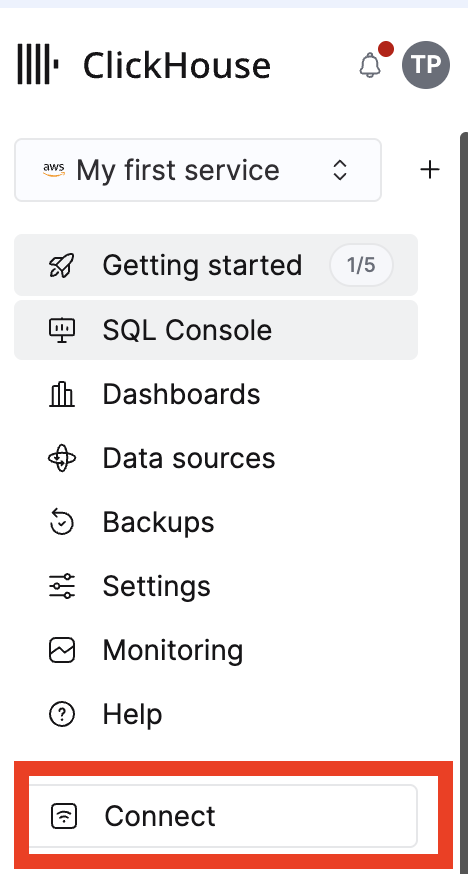
1. Click on **"Connect"** in the left sidebar
### Step 2: Access Connection Details
1. Click on **"Connect"** in the left sidebar
 2. In the **"Connect with"** dropdown, select **"Python"**
3. Copy the following connection details from the displayed code:
* **Host** (the server address)
* **Username**
* **Password**
2. In the **"Connect with"** dropdown, select **"Python"**
3. Copy the following connection details from the displayed code:
* **Host** (the server address)
* **Username**
* **Password**
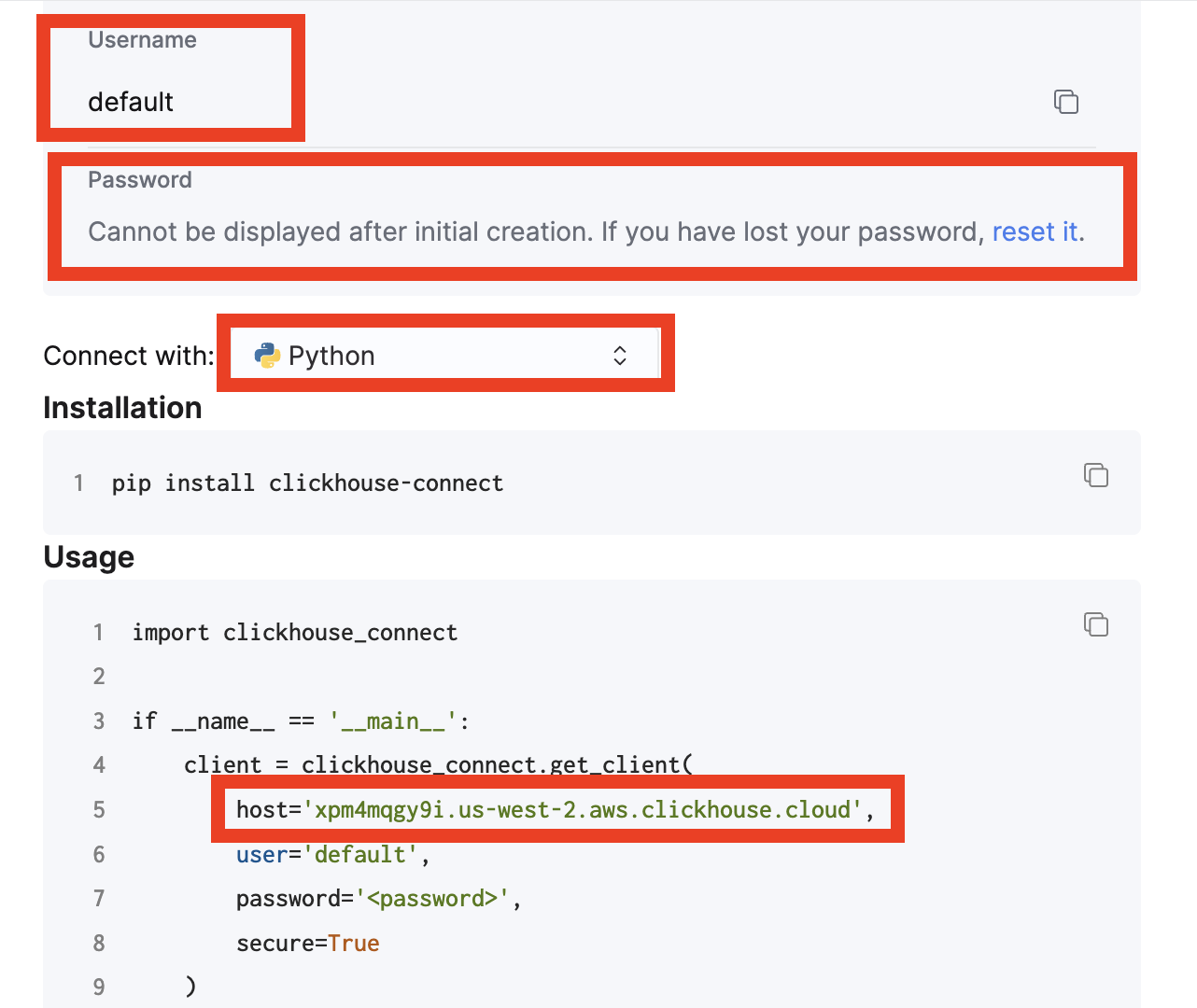 **Password Not Visible?** If you see a message like "Cannot be displayed
after initial creation. If you have lost your password, reset it," you'll
need to either: - Ask your IT Manager for the password - Reset the password
in your ClickHouse Cloud settings
***
## 2️⃣ Connect to Hunch Platform
Now let's connect your ClickHouse service to Hunch:
### Step 1: Navigate to Hunch
1. Go to [app.hunch.dev](https://app.hunch.dev)
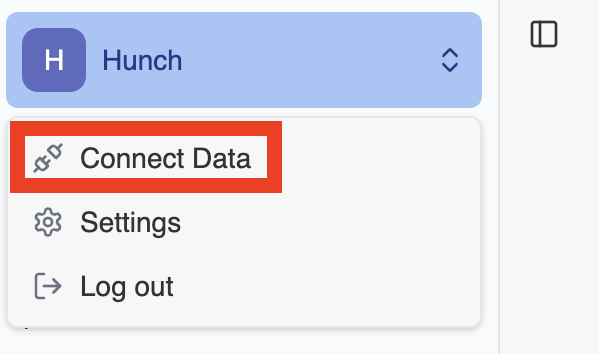
2. Click on the **Hunch logo** at the top-left corner
3. Select **"Connect your data"**
**Password Not Visible?** If you see a message like "Cannot be displayed
after initial creation. If you have lost your password, reset it," you'll
need to either: - Ask your IT Manager for the password - Reset the password
in your ClickHouse Cloud settings
***
## 2️⃣ Connect to Hunch Platform
Now let's connect your ClickHouse service to Hunch:
### Step 1: Navigate to Hunch
1. Go to [app.hunch.dev](https://app.hunch.dev)
2. Click on the **Hunch logo** at the top-left corner
3. Select **"Connect your data"**
 ### Step 2: Configure ClickHouse Integration
1. Find the **ClickHouse** service and click **"Configure"** next to it
### Step 2: Configure ClickHouse Integration
1. Find the **ClickHouse** service and click **"Configure"** next to it
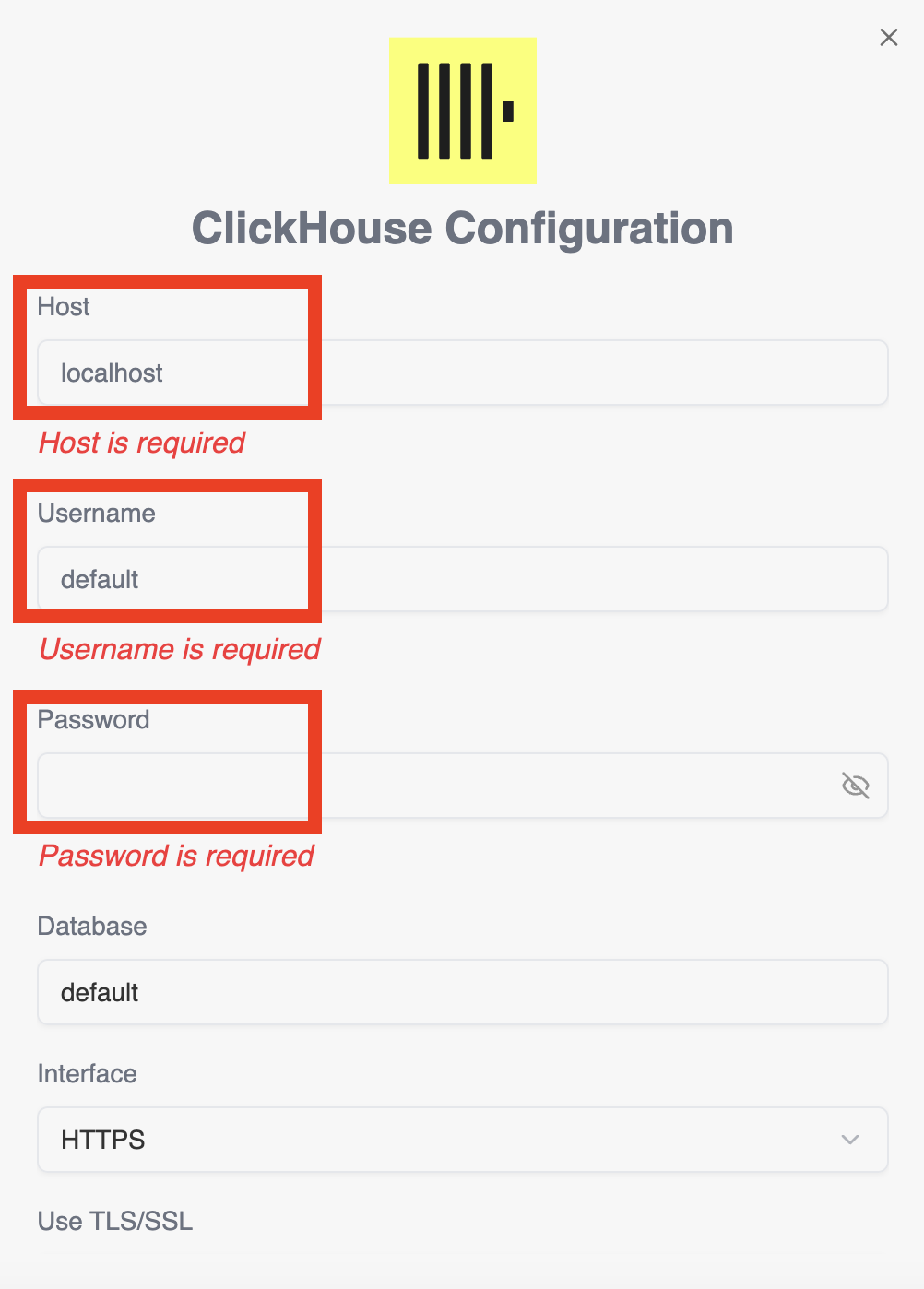 2. Fill in the connection details you gathered from ClickHouse Cloud:
* **Host**: The host address from your ClickHouse connection details
* **Username**: The username from your ClickHouse connection details
* **Password**: The password from your ClickHouse connection details
* **Database**: You can change this from "default" if you have multiple databases
### Step 3: Test and Save Connection
1. Click **"Test Connection"** at the bottom of the form
2. Wait for the connection test to complete successfully
2. Fill in the connection details you gathered from ClickHouse Cloud:
* **Host**: The host address from your ClickHouse connection details
* **Username**: The username from your ClickHouse connection details
* **Password**: The password from your ClickHouse connection details
* **Database**: You can change this from "default" if you have multiple databases
### Step 3: Test and Save Connection
1. Click **"Test Connection"** at the bottom of the form
2. Wait for the connection test to complete successfully
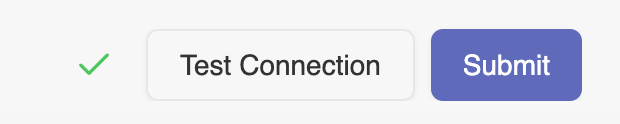 3. Once the connection test passes, click **"Submit"** to save your integration
***
## 🎉 You're All Set!
That's it! Your ClickHouse database is now connected to Hunch. You can now mention your ClickHouse database in your queries and Hunch will be able to access your data.
***
## 🚨 Troubleshooting
### Common Issues
**Connection Test Failed**
* Double-check that you copied the host, username, and password correctly from ClickHouse Cloud
* Ensure your ClickHouse service is running and accessible
* Verify that there are no typos in the connection details
**Password Issues**
* If the password is not visible in ClickHouse Cloud, you may need to reset it
* Contact your IT Manager if you don't have permission to reset the password
**Database Access**
* Make sure the user has the necessary permissions to access the database you're trying to connect
* Try using "default" as the database name if you're unsure
***
## 📞 Need Help?
If you encounter any issues during setup, our support team is here to help:
* **Email**: [support@hunch.dev](mailto:support@hunch.dev)
* **Slack Community**: [Join our Slack](https://join.slack.com/t/hunchdevcommunity/shared_invite/zt-38sihc6ph-zwQUOA4OD5TUIdDXxpjK0w)
We typically respond within a few hours during business hours.
3. Once the connection test passes, click **"Submit"** to save your integration
***
## 🎉 You're All Set!
That's it! Your ClickHouse database is now connected to Hunch. You can now mention your ClickHouse database in your queries and Hunch will be able to access your data.
***
## 🚨 Troubleshooting
### Common Issues
**Connection Test Failed**
* Double-check that you copied the host, username, and password correctly from ClickHouse Cloud
* Ensure your ClickHouse service is running and accessible
* Verify that there are no typos in the connection details
**Password Issues**
* If the password is not visible in ClickHouse Cloud, you may need to reset it
* Contact your IT Manager if you don't have permission to reset the password
**Database Access**
* Make sure the user has the necessary permissions to access the database you're trying to connect
* Try using "default" as the database name if you're unsure
***
## 📞 Need Help?
If you encounter any issues during setup, our support team is here to help:
* **Email**: [support@hunch.dev](mailto:support@hunch.dev)
* **Slack Community**: [Join our Slack](https://join.slack.com/t/hunchdevcommunity/shared_invite/zt-38sihc6ph-zwQUOA4OD5TUIdDXxpjK0w)
We typically respond within a few hours during business hours.