> ## Documentation Index
> Fetch the complete documentation index at: https://docs.hunch.dev/llms.txt
> Use this file to discover all available pages before exploring further.
# Google Analytics
> Connect your Google Analytics account to Hunch
This guide will help you securely connect your Google Analytics account to Hunch using Google Cloud Platform Service Account in just a few minutes.
***
## ✅ What You'll Need
* **Google Account** with access to Google Analytics
* **Google Analytics Property ID**
* **Google Cloud Platform Service Account**
***
## 1️⃣ Prepare Your Google Account
1. Make sure you have a Google account with access to Google Analytics
2. Ensure you have the necessary permissions to access Google Analytics data
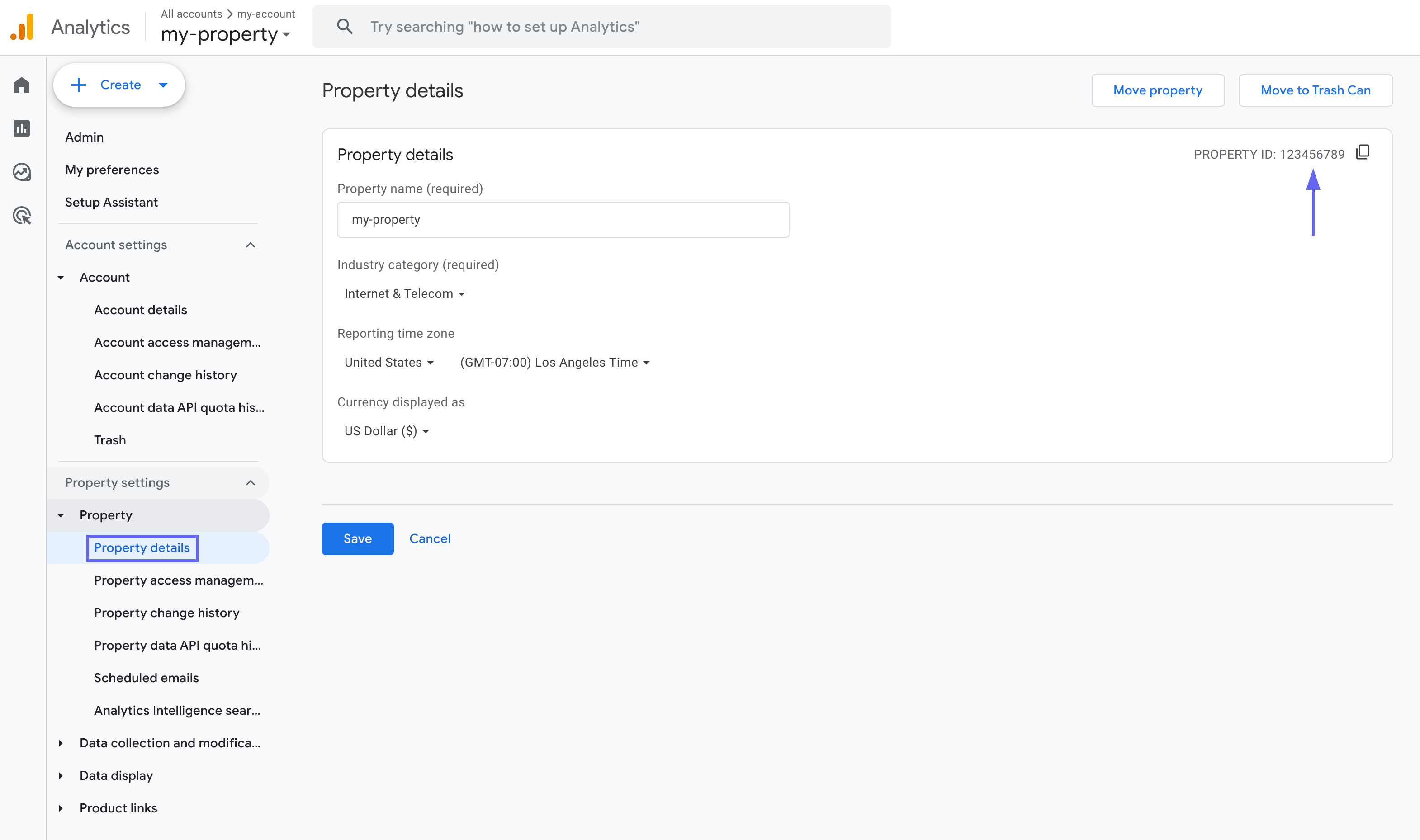
3. **Find your Google Analytics Property ID**:
* Open Google Analytics in your browser
* In the left sidebar, click on **⚙️ Admin**
* Under the **Property** column, select **Property details**
* Your Property ID will be displayed in the top right corner of the page
{" "}
 4. Create a Google Service Account:
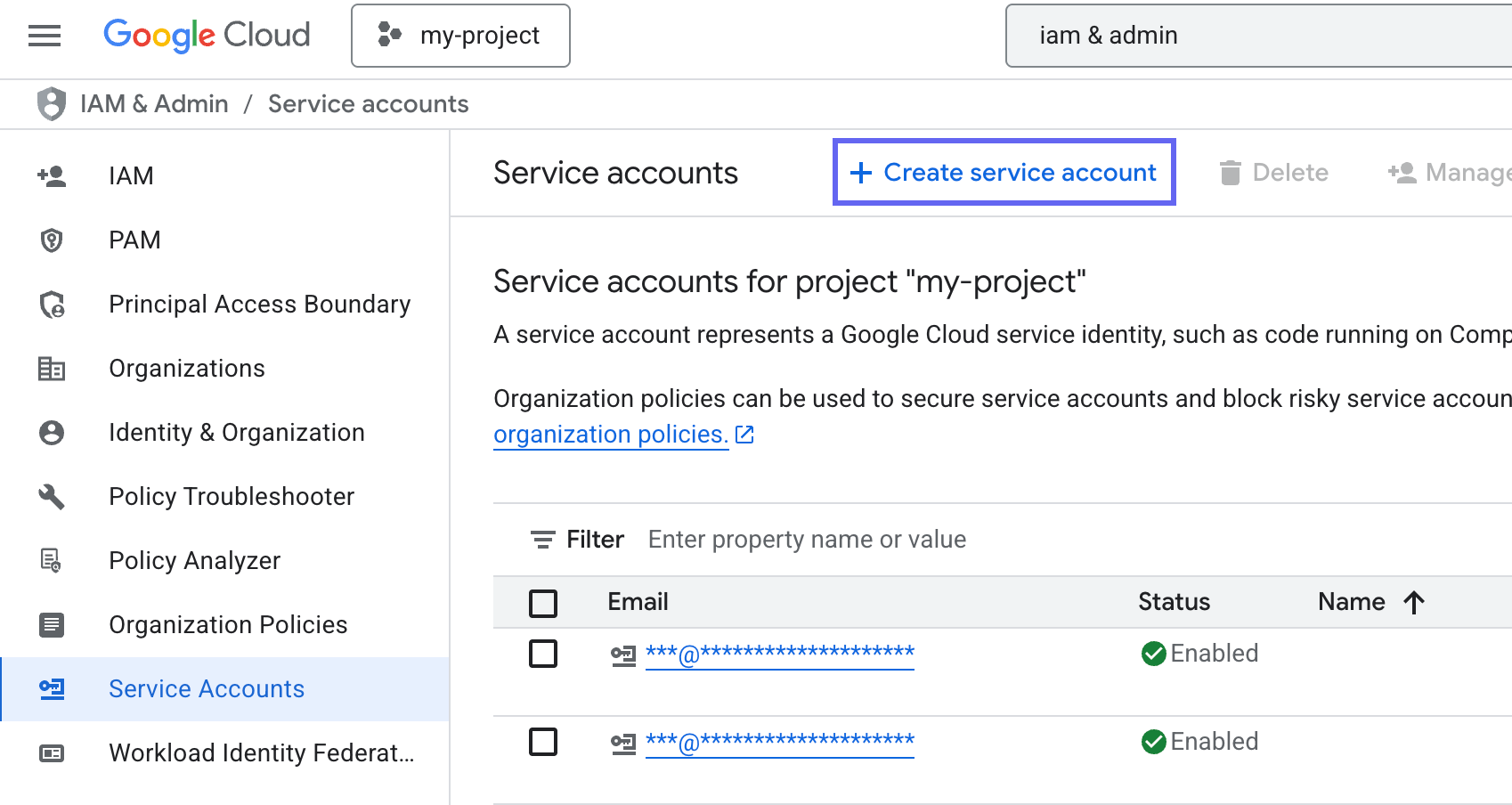
* Go to **Google Cloud Platform Console** > **IAM & Admin** > **Service Accounts**
* Click **+ CREATE SERVICE ACCOUNT**
4. Create a Google Service Account:
* Go to **Google Cloud Platform Console** > **IAM & Admin** > **Service Accounts**
* Click **+ CREATE SERVICE ACCOUNT**
 * Enter a name for your service account (e.g., "hunch-integration")
* Click **CREATE AND CONTINUE**
* Enter a name for your service account (e.g., "hunch-integration")
* Click **CREATE AND CONTINUE**
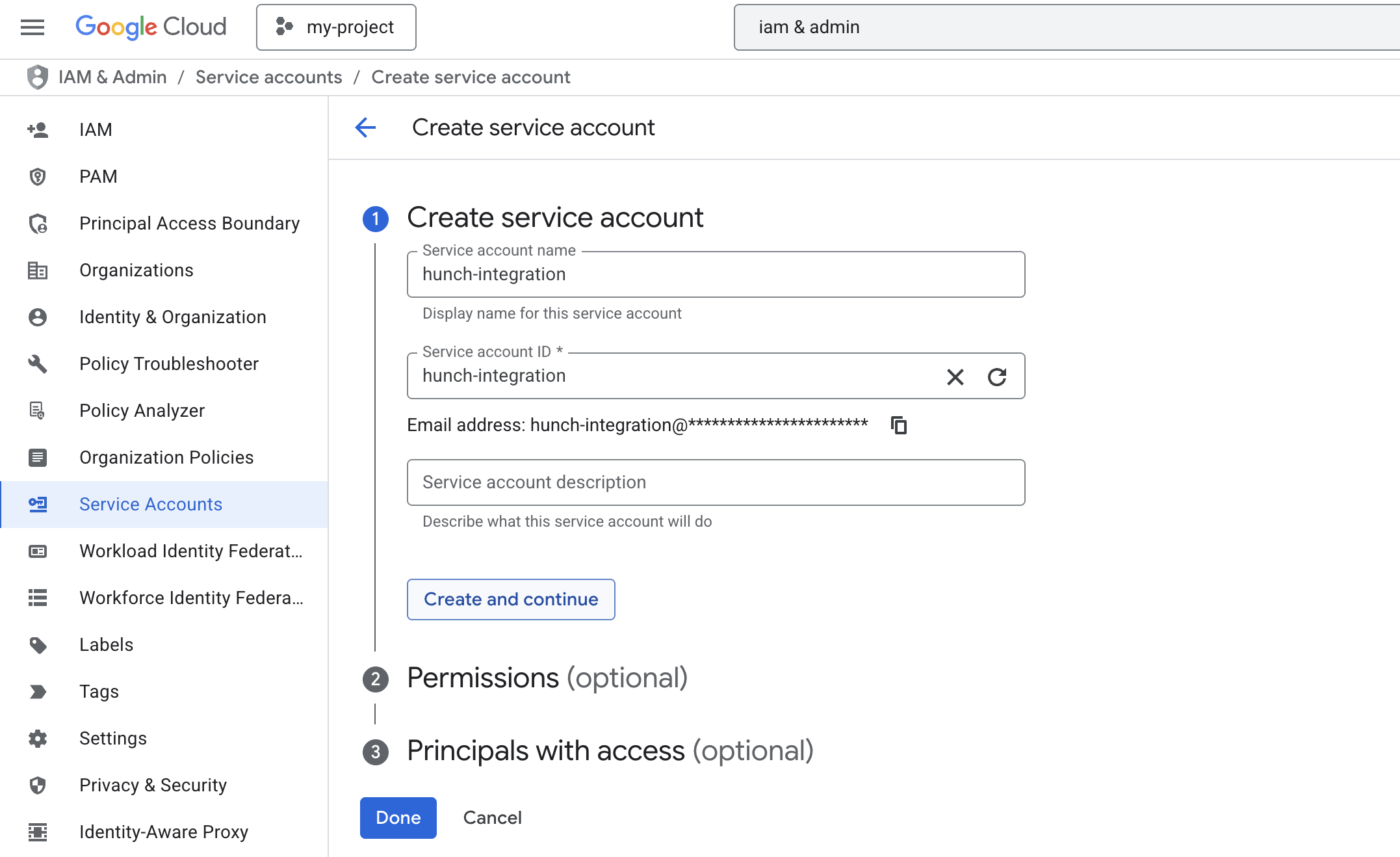 * Click **CONTINUE** and then **DONE**
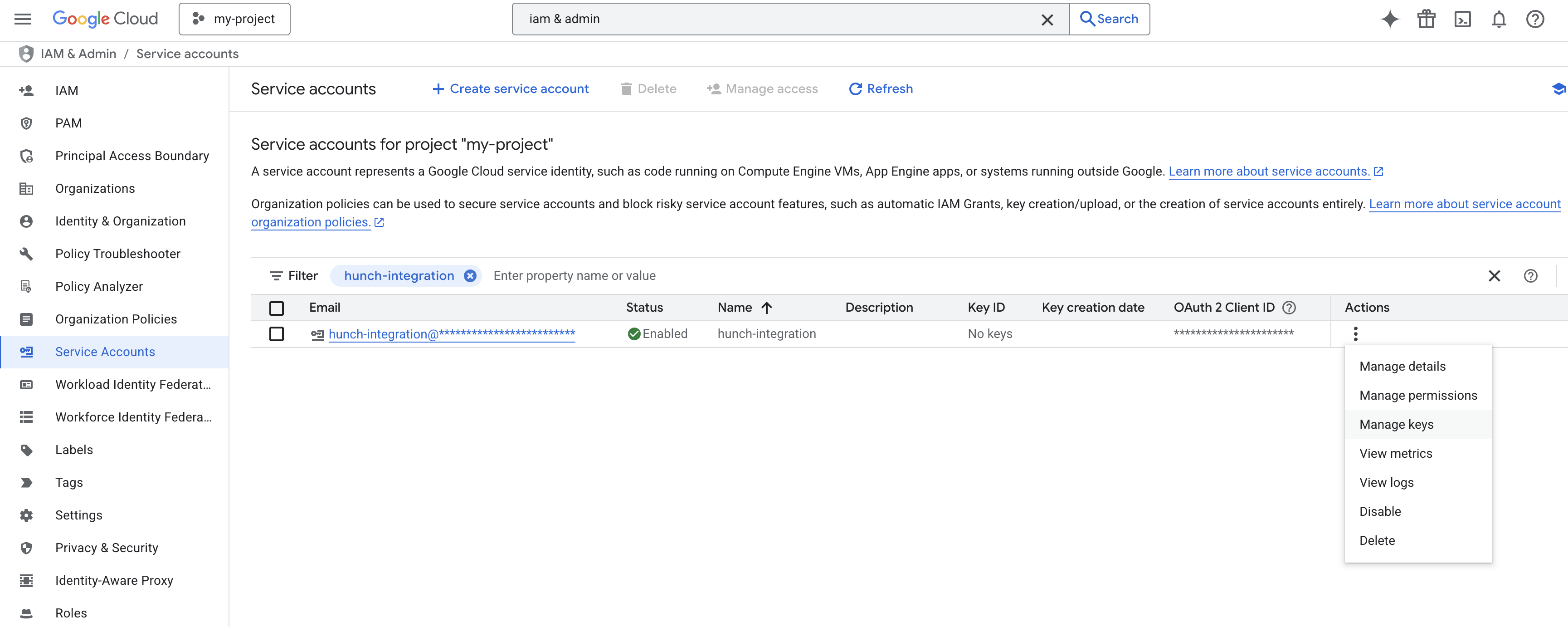
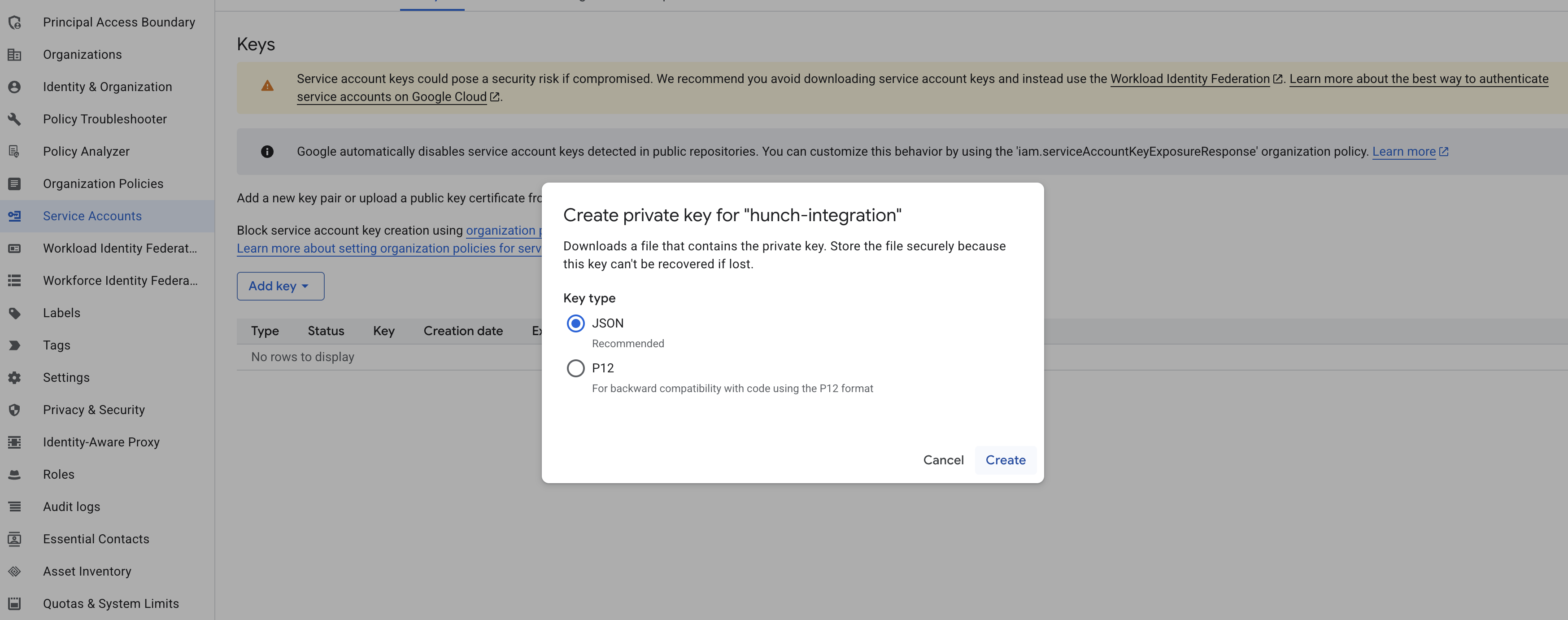
5. Generate and download the service account key:
* Find your new service account in the list
* Click the three dots menu (⋮) > **Manage keys**
* Click **CONTINUE** and then **DONE**
5. Generate and download the service account key:
* Find your new service account in the list
* Click the three dots menu (⋮) > **Manage keys**
 * Click **ADD KEY** > **Create new key**
* Choose **JSON** format
* Click **CREATE** to download the key file
* Keep this file secure - you'll need it for the next steps
* Click **ADD KEY** > **Create new key**
* Choose **JSON** format
* Click **CREATE** to download the key file
* Keep this file secure - you'll need it for the next steps
 [For more details, see Google Cloud Platform documentation -->](https://cloud.google.com/iam/docs/service-accounts-create#console)
6. Provide Google Analytics with permissions to your Service Account:
* Open Google Analytics in your browser
* In the left sidebar, click on **⚙️ Admin**
* Under the **Property** column, click **Property Access Management**
[For more details, see Google Cloud Platform documentation -->](https://cloud.google.com/iam/docs/service-accounts-create#console)
6. Provide Google Analytics with permissions to your Service Account:
* Open Google Analytics in your browser
* In the left sidebar, click on **⚙️ Admin**
* Under the **Property** column, click **Property Access Management**
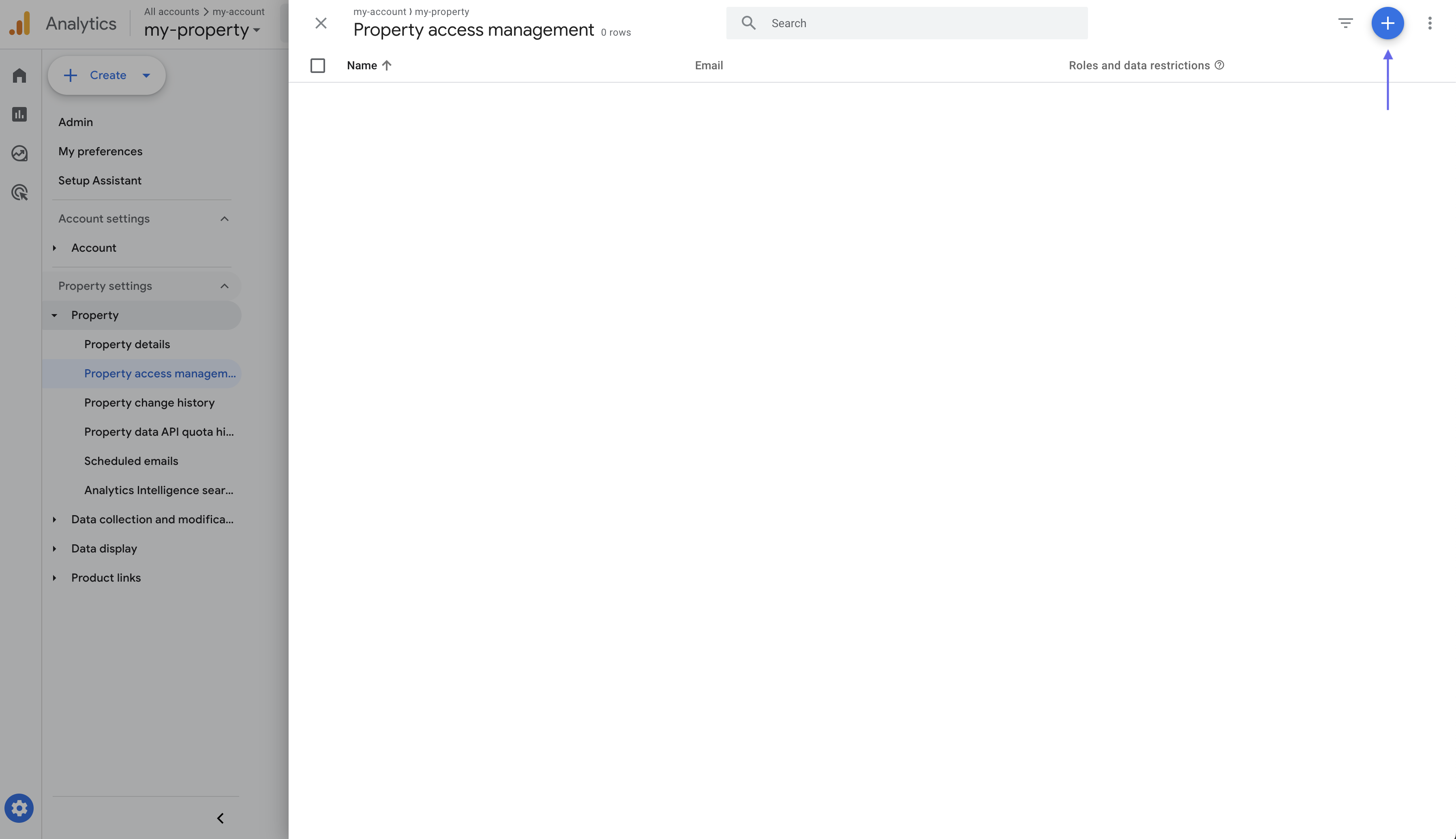
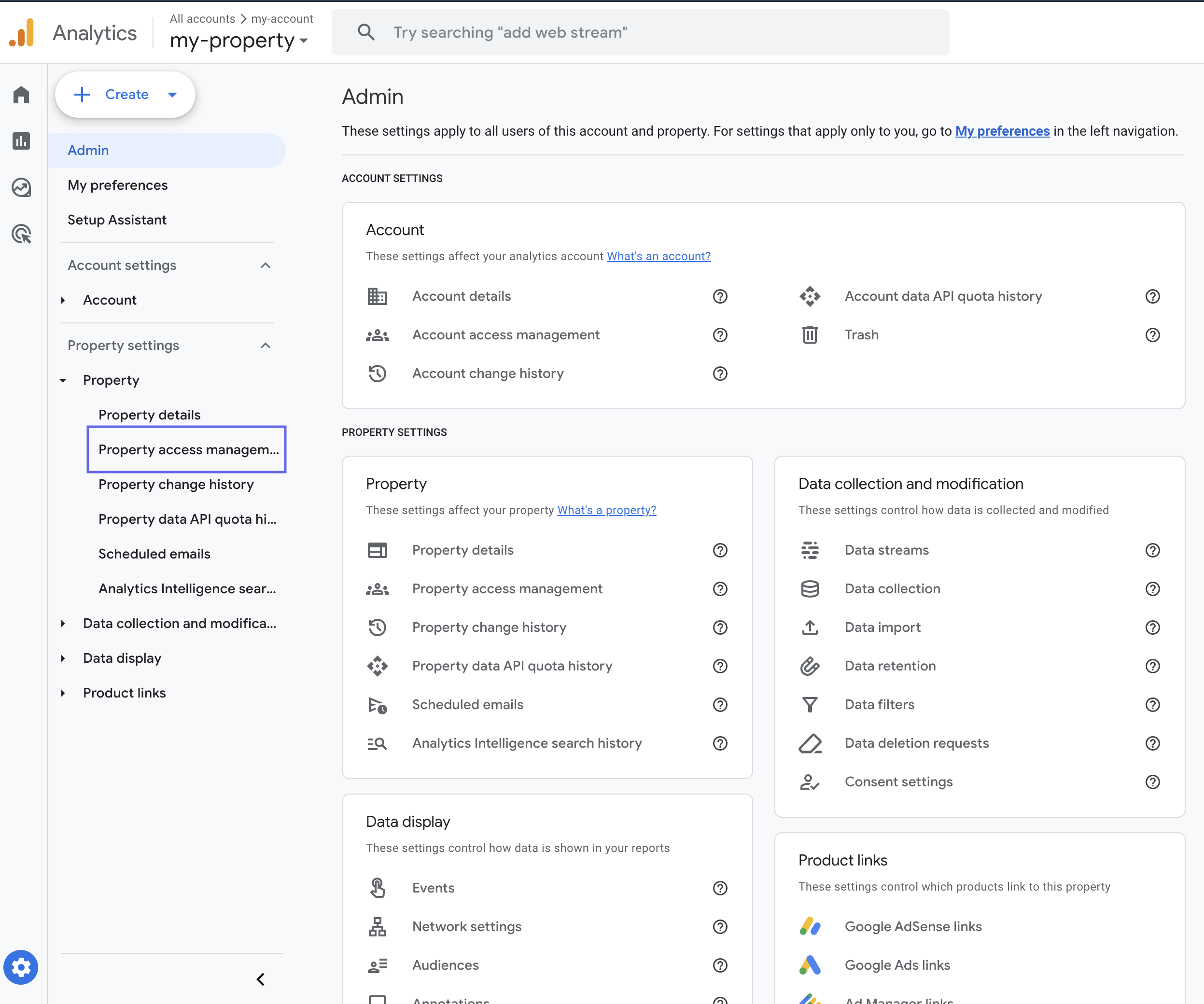 * Click on the ➕ button > Click on **Add users**
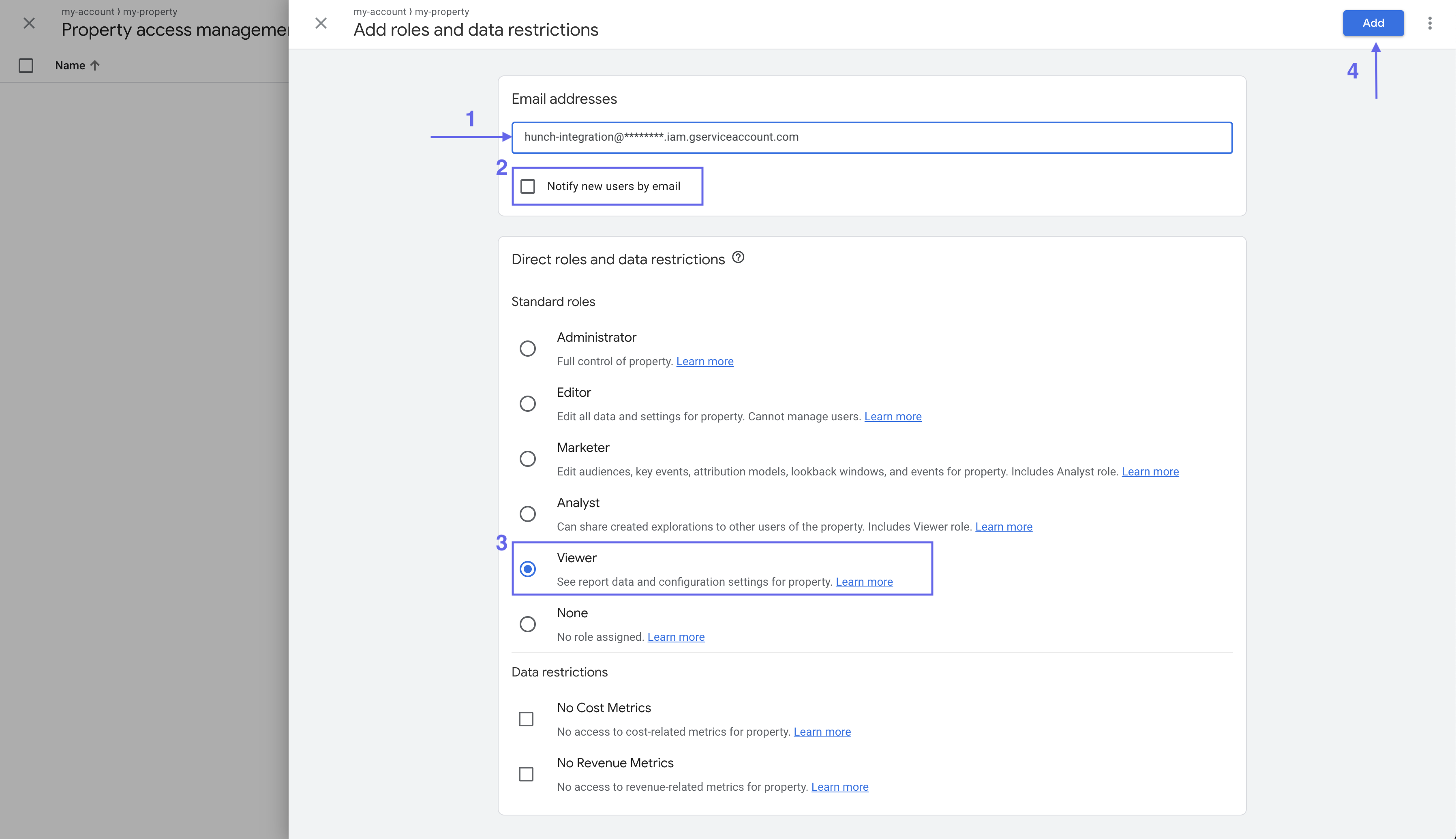
 * Enter your Service Account email (it ends with `.iam.gserviceaccount.com`)
* Uncheck **Notify new users by email**
* Select the **Viewer** role
* Click **Add**
* Enter your Service Account email (it ends with `.iam.gserviceaccount.com`)
* Uncheck **Notify new users by email**
* Select the **Viewer** role
* Click **Add**
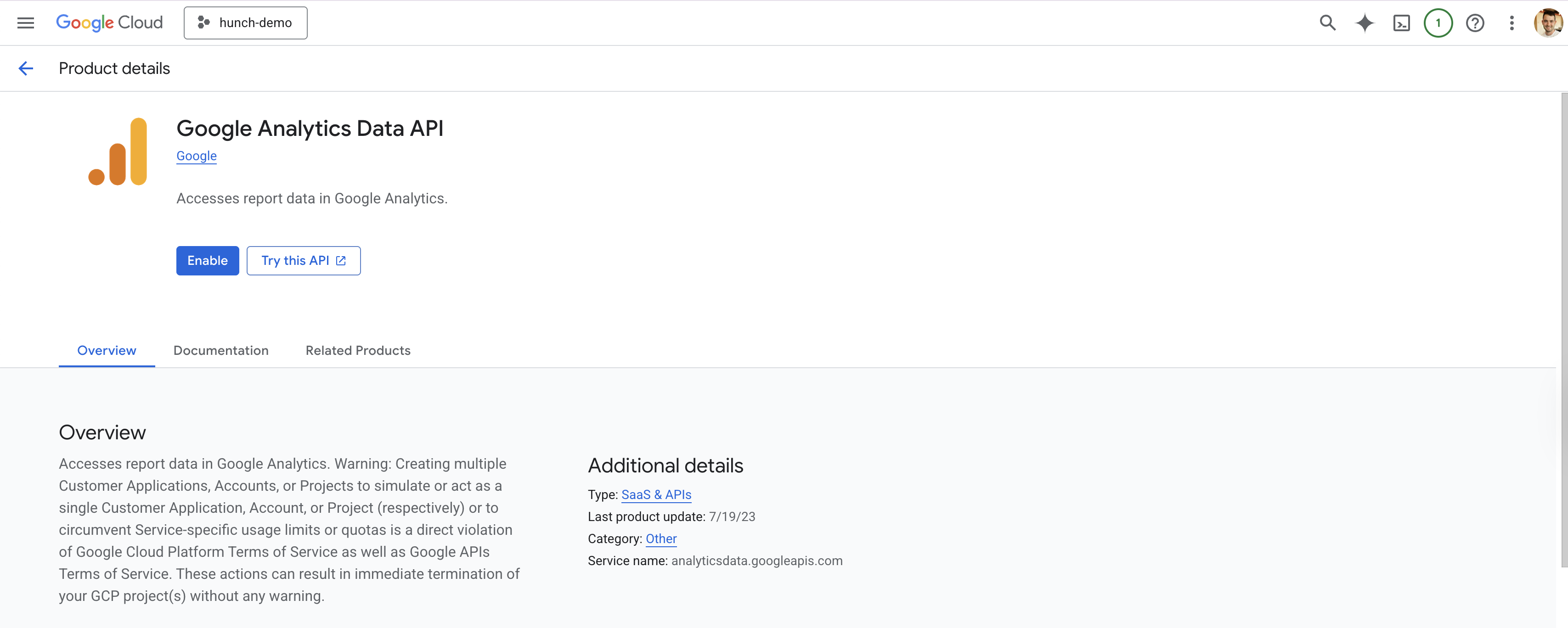
 7. Enable the Google Analytics Data API:
* Go back to the Google Cloud Console
* Search for "Google Analytics Data API" in the search bar
* Click on the **Google Analytics Data API** result
* Click **Enable**
7. Enable the Google Analytics Data API:
* Go back to the Google Cloud Console
* Search for "Google Analytics Data API" in the search bar
* Click on the **Google Analytics Data API** result
* Click **Enable**
 ***
## 2️⃣ Connect Google Analytics to Hunch
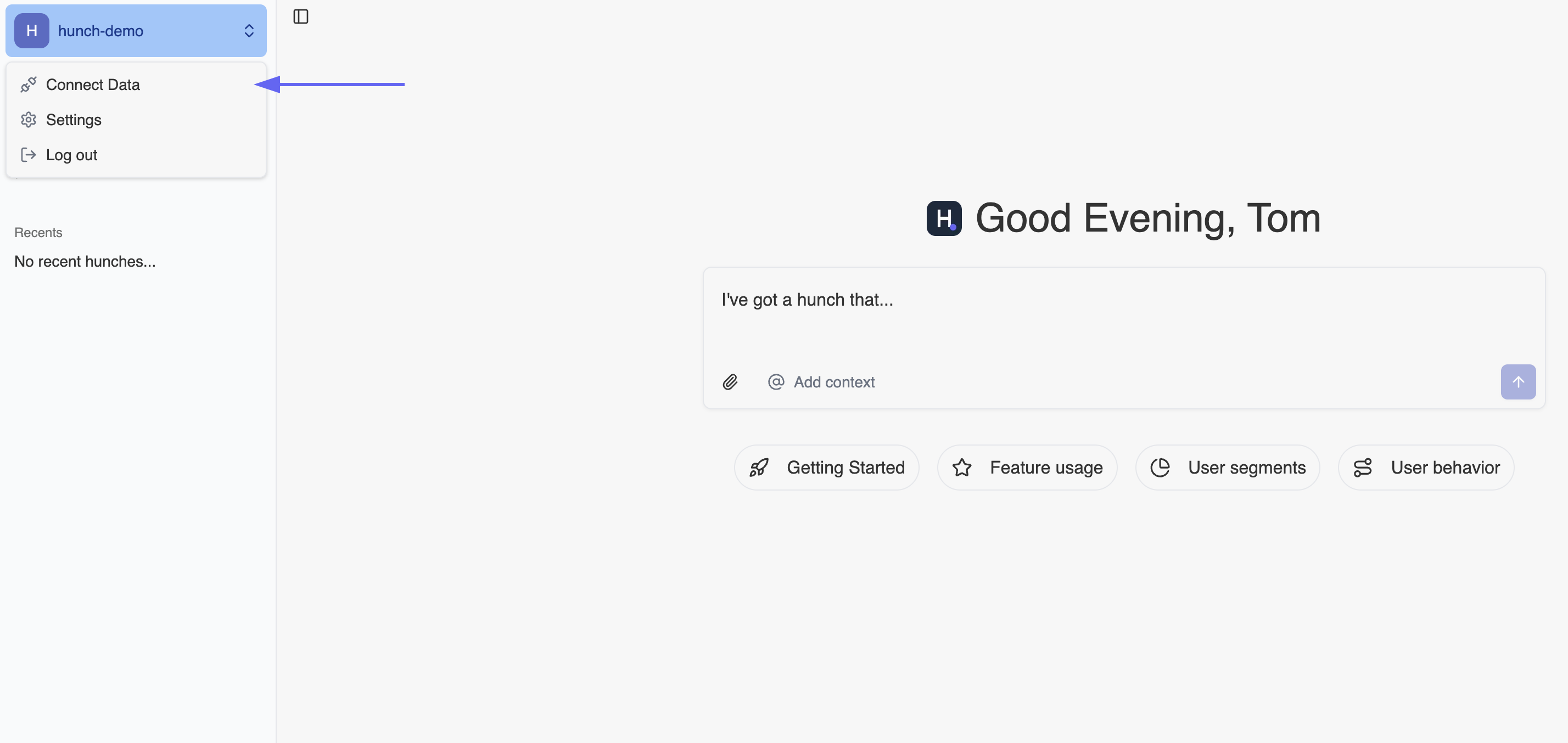
1. Log into [Hunch.dev](https://app.hunch.dev/login)
2. Click on your organization name > **Connect Data**
***
## 2️⃣ Connect Google Analytics to Hunch
1. Log into [Hunch.dev](https://app.hunch.dev/login)
2. Click on your organization name > **Connect Data**
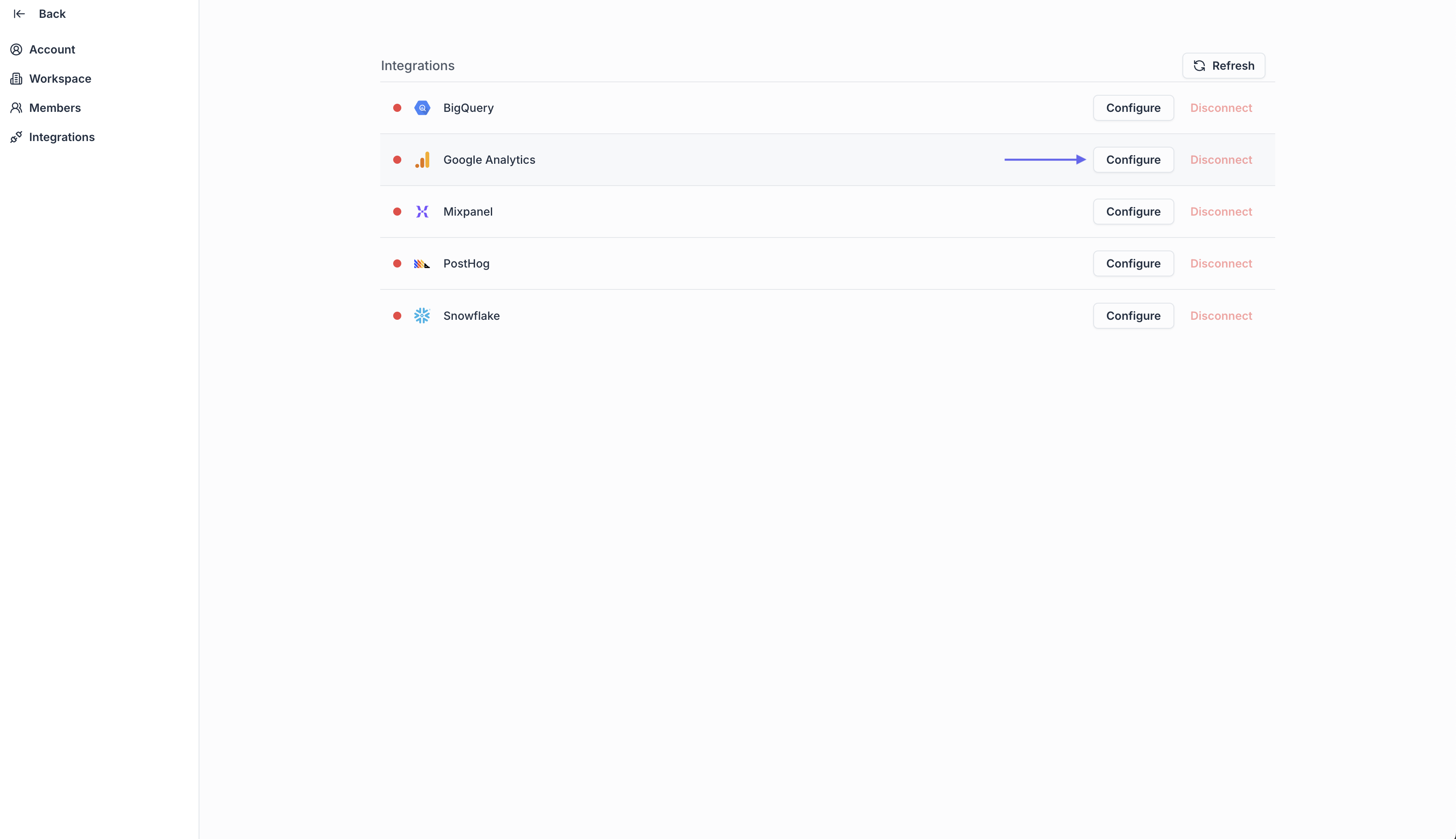
 3. Click **Configure** on the Google Analytics row
{" "}
3. Click **Configure** on the Google Analytics row
{" "}
 4. Open the Service Account key file from step 1.5, copy its content and paste it under the **Google Analytics Service Account JSON key** field
{" "}
4. Open the Service Account key file from step 1.5, copy its content and paste it under the **Google Analytics Service Account JSON key** field
{" "}
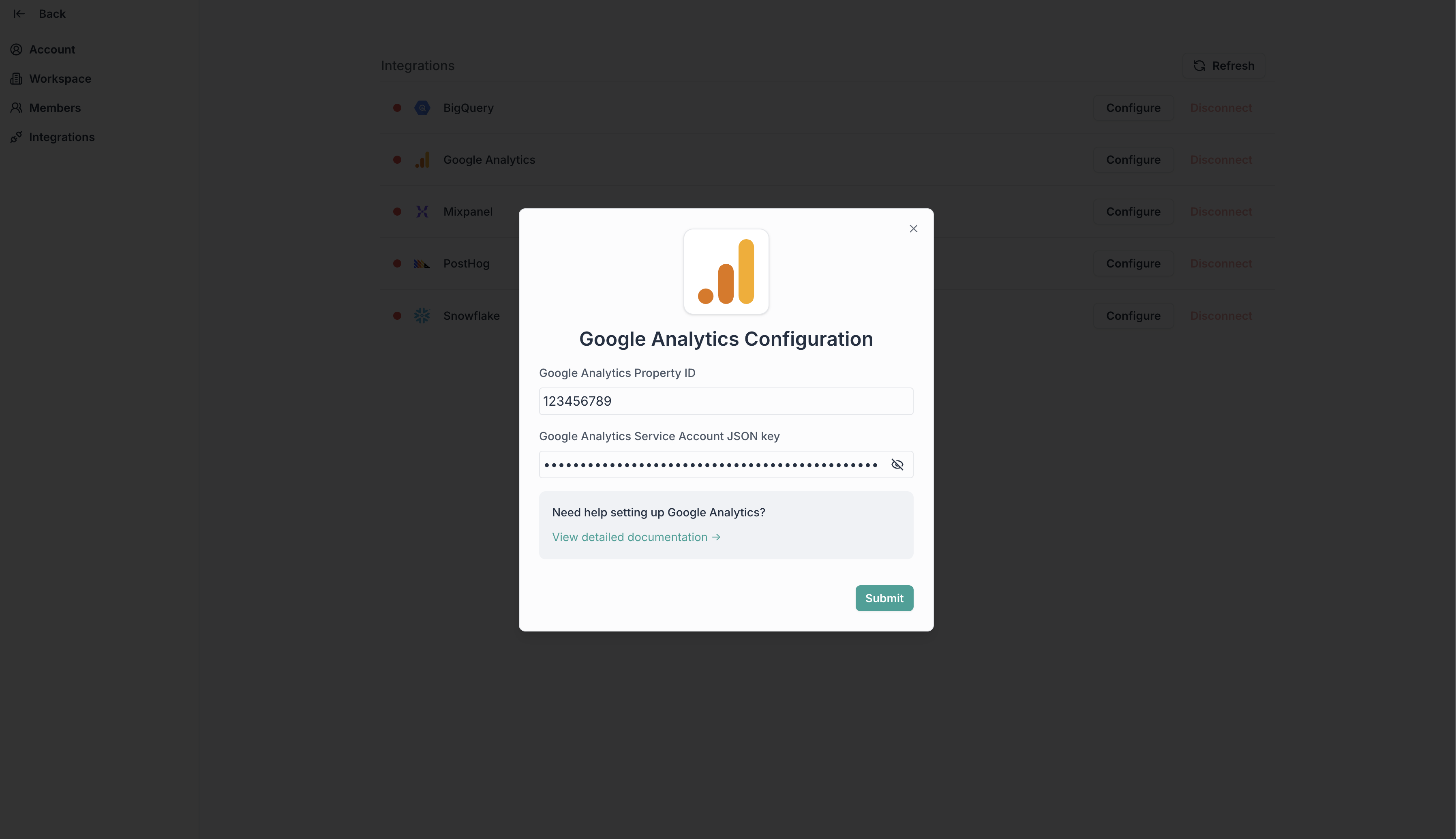 5. Click **Submit**
***
## 🎉 Done! You're now connected
Need help? Ping us at [support@hunch.dev](mailto:support@hunch.dev)
***
## 🔒 Security Note
> Hunch uses Google Service Account keys for secure access to your Google Analytics data. Your credentials are encrypted and stored securely.
5. Click **Submit**
***
## 🎉 Done! You're now connected
Need help? Ping us at [support@hunch.dev](mailto:support@hunch.dev)
***
## 🔒 Security Note
> Hunch uses Google Service Account keys for secure access to your Google Analytics data. Your credentials are encrypted and stored securely.