> ## Documentation Index
> Fetch the complete documentation index at: https://docs.hunch.dev/llms.txt
> Use this file to discover all available pages before exploring further.
# Kaggle
> Connect your Kaggle account to Hunch
This guide will help you connect your Kaggle account to Hunch in just a few minutes.
***
## ✅ What You'll Need
* **Kaggle Account** at [kaggle.com](https://www.kaggle.com)
* **Access** to your Kaggle account settings
***
## 1️⃣ Get Your Kaggle API Credentials
First, let's get your API credentials from Kaggle:
### Step 1: Access Kaggle Settings
1. Go to [kaggle.com](https://www.kaggle.com) and sign in to your account
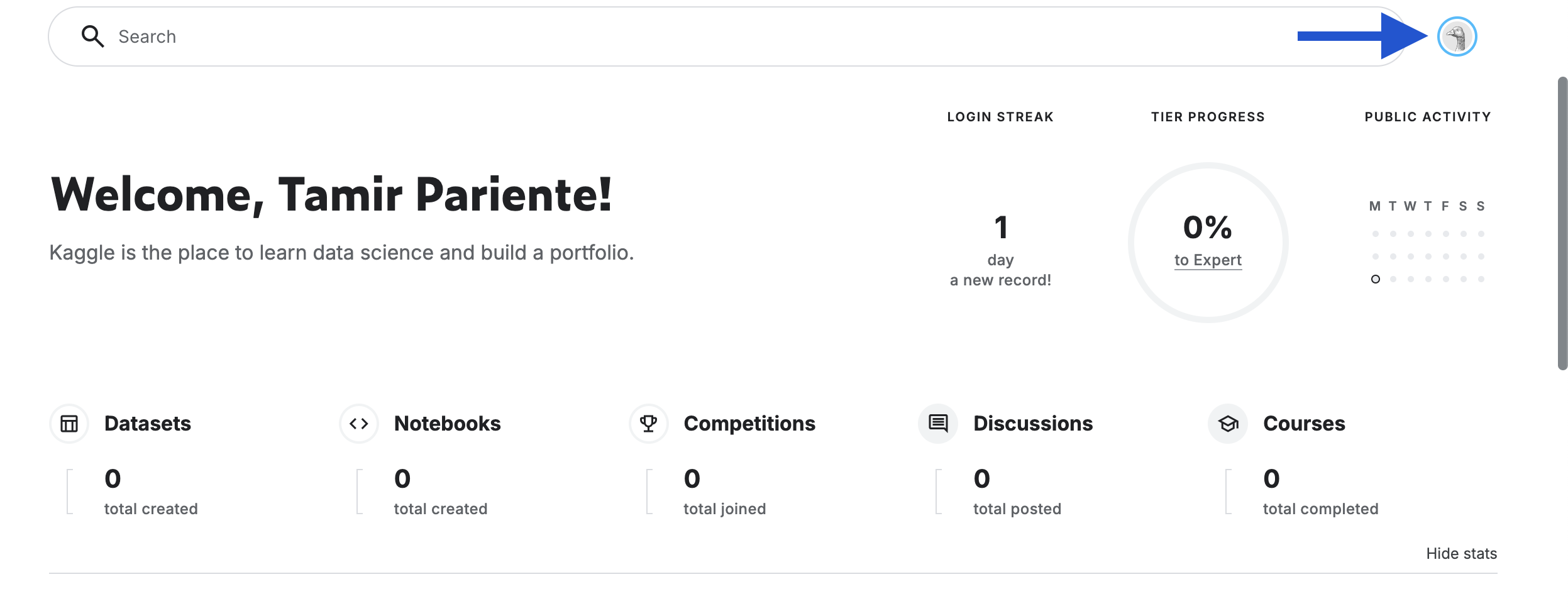
2. Click on your **profile icon** in the top right corner
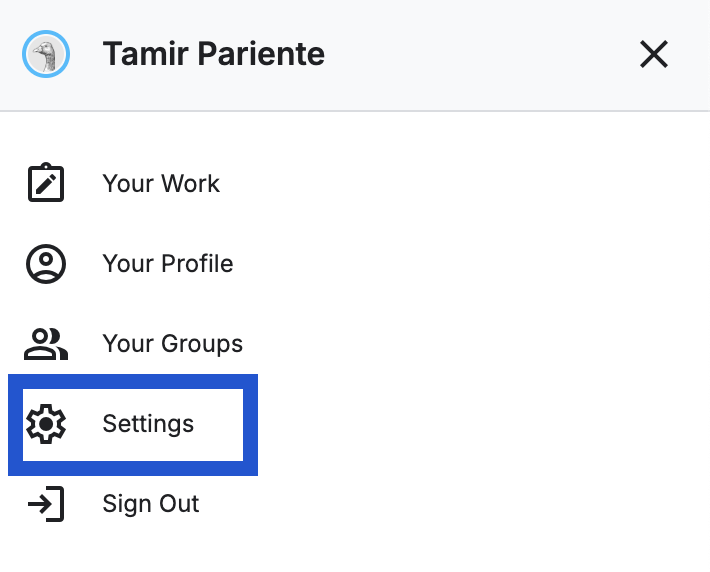
 3. Select **"Settings"** from the dropdown menu
 ### Step 2: Generate API Token
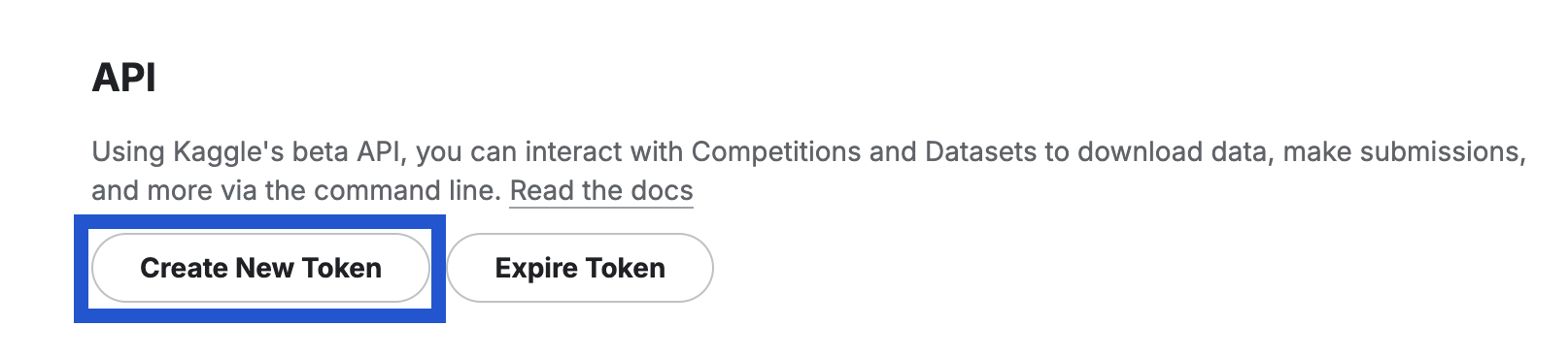
1. Scroll down until you reach the **"API"** section
2. Click **"Create New Token"**
### Step 2: Generate API Token
1. Scroll down until you reach the **"API"** section
2. Click **"Create New Token"**
 3. Agree to the pop-up screen when prompted
4. A JSON file will be automatically downloaded to your computer
### Step 3: Extract Your Credentials
1. Open the downloaded JSON file (usually named `kaggle.json`)
2. You'll find two important values: **"username"** and **"key"**
3. Agree to the pop-up screen when prompted
4. A JSON file will be automatically downloaded to your computer
### Step 3: Extract Your Credentials
1. Open the downloaded JSON file (usually named `kaggle.json`)
2. You'll find two important values: **"username"** and **"key"**
 **Keep Your Credentials Safe**: Store your username and key securely. Never
share your API key publicly or commit it to version control.
***
## 2️⃣ Connect to Hunch Platform
Now let's connect your Kaggle account to Hunch:
### Step 1: Navigate to Hunch
1. Go to [app.hunch.dev](https://app.hunch.dev)
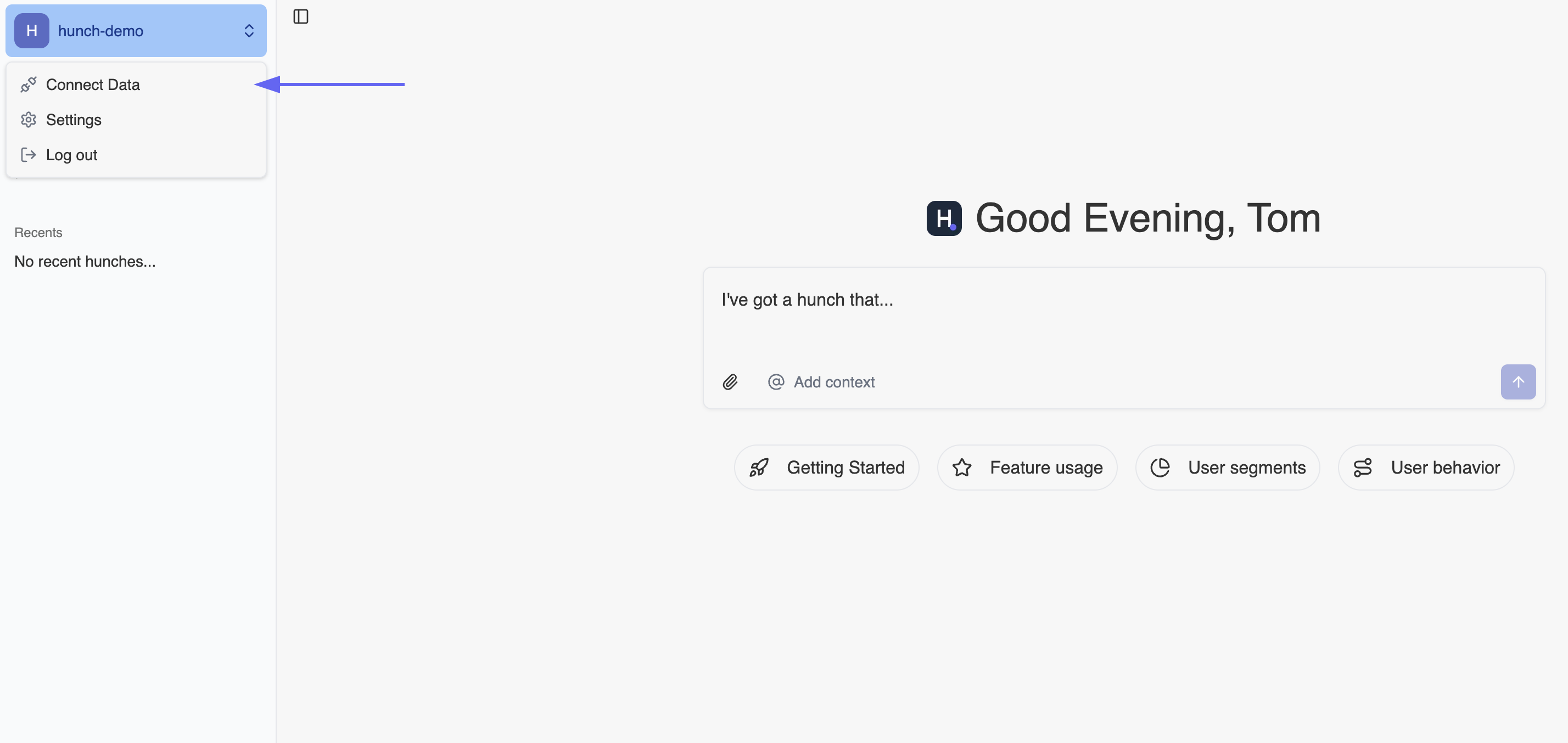
2. Click on the **Hunch logo** at the top-left corner
3. Select **"Connect your data"**
**Keep Your Credentials Safe**: Store your username and key securely. Never
share your API key publicly or commit it to version control.
***
## 2️⃣ Connect to Hunch Platform
Now let's connect your Kaggle account to Hunch:
### Step 1: Navigate to Hunch
1. Go to [app.hunch.dev](https://app.hunch.dev)
2. Click on the **Hunch logo** at the top-left corner
3. Select **"Connect your data"**
 ### Step 2: Configure Kaggle Integration
1. Find the **Kaggle** service and click **"Configure"** next to it
### Step 2: Configure Kaggle Integration
1. Find the **Kaggle** service and click **"Configure"** next to it
 2. Fill in the connection details using the credentials from your JSON file:
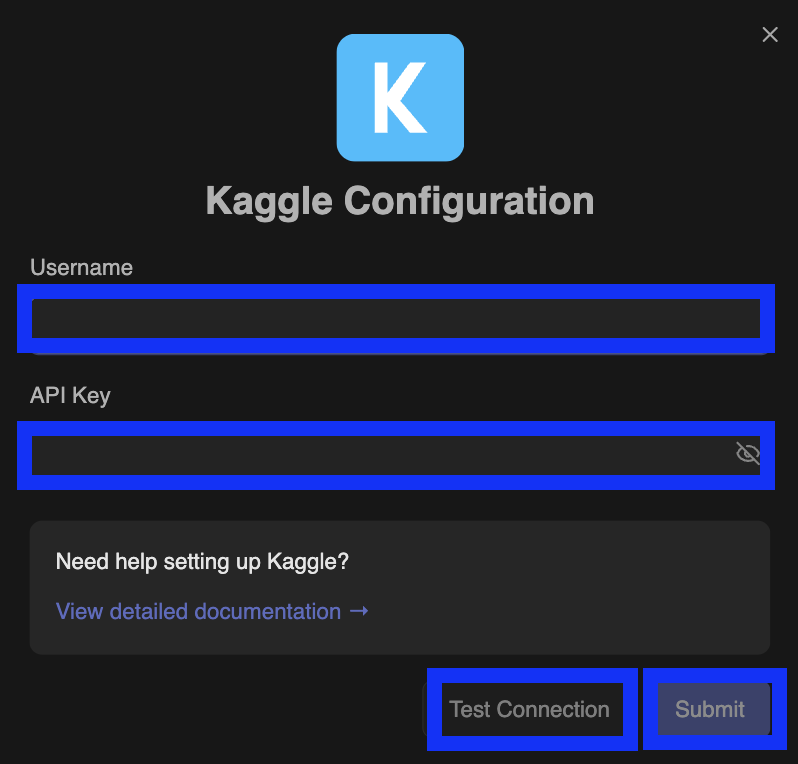 Enter the following details: - **Username**: The username value from your `kaggle.json` file - **Key**: The key value from your `kaggle.json` file
### Step 3: Test and Save Connection
1. Click **"Test Connection"** at the bottom of the form
2. Wait for the connection test to complete successfully - you'll see a green tick appear
3. Once the green tick appears confirming the connection is successful, click **"Submit"** to save your integration
***
## 🎉 You're All Set!
That's it! Your Kaggle account is now connected to Hunch. You can now mention your Kaggle connection as a data source and ask Hunch everything you want about your Kaggle datasets and competitions.
***
## 🚨 Troubleshooting
### Common Issues
**Connection Test Failed**
* Double-check that you copied the username and key correctly from your `kaggle.json` file
* Ensure there are no extra spaces or characters when pasting the credentials
* Verify that your Kaggle API token is active and hasn't been revoked
**JSON File Issues**
* Make sure you downloaded the file completely - incomplete downloads may result in corrupted credentials
* If the JSON file seems invalid, try generating a new token from Kaggle
**API Token Problems**
* If you've previously created tokens, the new token will replace the old one
* Ensure you're using the most recently generated token
* Check that your Kaggle account has API access enabled
**Access Issues**
* Verify that your Kaggle account is in good standing
* Some Kaggle features may require phone verification - check your account status
***
## 📞 Need Help?
If you encounter any issues during setup, our support team is here to help:
* **Email**: [support@hunch.dev](mailto:support@hunch.dev)
* **Slack Community**: [Join our Slack](https://join.slack.com/t/hunchdevcommunity/shared_invite/zt-38sihc6ph-zwQUOA4OD5TUIdDXxpjK0w)
We typically respond within a few hours during business hours.
Enter the following details: - **Username**: The username value from your `kaggle.json` file - **Key**: The key value from your `kaggle.json` file
### Step 3: Test and Save Connection
1. Click **"Test Connection"** at the bottom of the form
2. Wait for the connection test to complete successfully - you'll see a green tick appear
3. Once the green tick appears confirming the connection is successful, click **"Submit"** to save your integration
***
## 🎉 You're All Set!
That's it! Your Kaggle account is now connected to Hunch. You can now mention your Kaggle connection as a data source and ask Hunch everything you want about your Kaggle datasets and competitions.
***
## 🚨 Troubleshooting
### Common Issues
**Connection Test Failed**
* Double-check that you copied the username and key correctly from your `kaggle.json` file
* Ensure there are no extra spaces or characters when pasting the credentials
* Verify that your Kaggle API token is active and hasn't been revoked
**JSON File Issues**
* Make sure you downloaded the file completely - incomplete downloads may result in corrupted credentials
* If the JSON file seems invalid, try generating a new token from Kaggle
**API Token Problems**
* If you've previously created tokens, the new token will replace the old one
* Ensure you're using the most recently generated token
* Check that your Kaggle account has API access enabled
**Access Issues**
* Verify that your Kaggle account is in good standing
* Some Kaggle features may require phone verification - check your account status
***
## 📞 Need Help?
If you encounter any issues during setup, our support team is here to help:
* **Email**: [support@hunch.dev](mailto:support@hunch.dev)
* **Slack Community**: [Join our Slack](https://join.slack.com/t/hunchdevcommunity/shared_invite/zt-38sihc6ph-zwQUOA4OD5TUIdDXxpjK0w)
We typically respond within a few hours during business hours.