> ## Documentation Index
> Fetch the complete documentation index at: https://docs.hunch.dev/llms.txt
> Use this file to discover all available pages before exploring further.
# Mixpanel
> Connect your Mixpanel account to Hunch
This guide will help you securely connect your Mixpanel account to Hunch in just a few minutes.
***
## ✅ What You'll Need
* **Mixpanel Service Account Credentials** (username & secret key)
* **Mixpanel Project ID**
***
## 1️⃣ Create a Service Account in Mixpanel
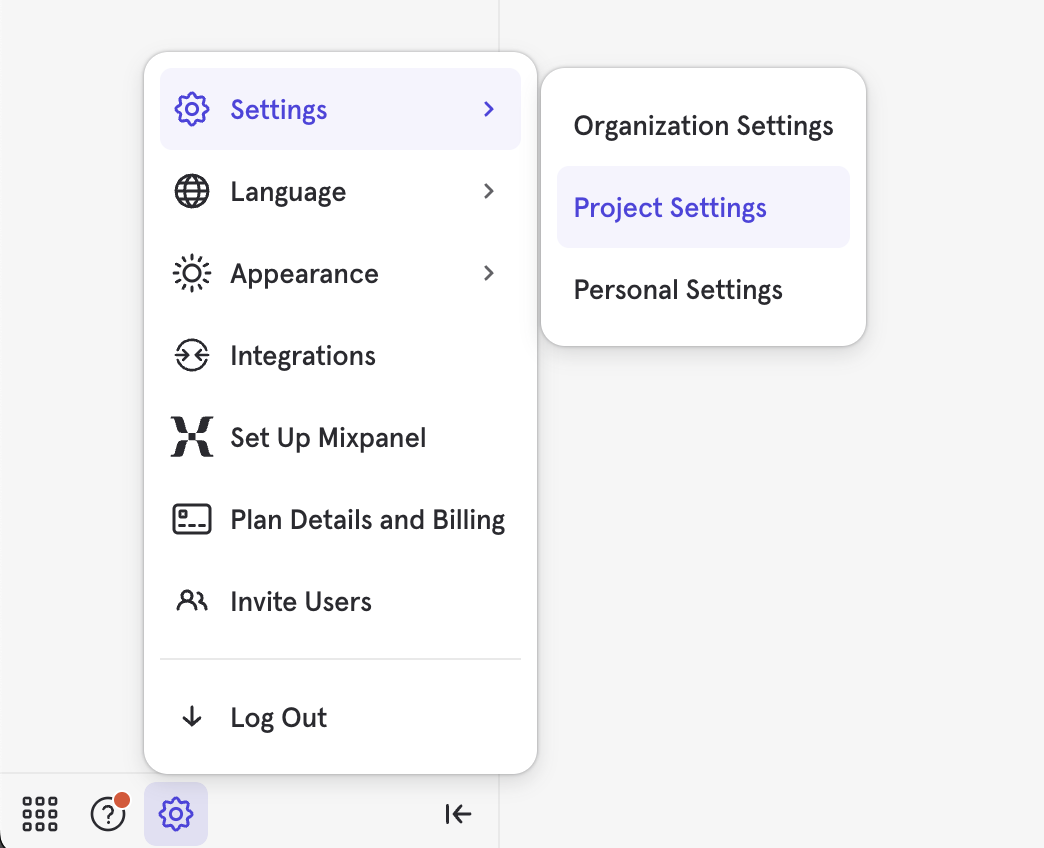
1. Go to **Mixpanel > ⚙️ Gear icon > Settings > Project Settings > Service Accounts**
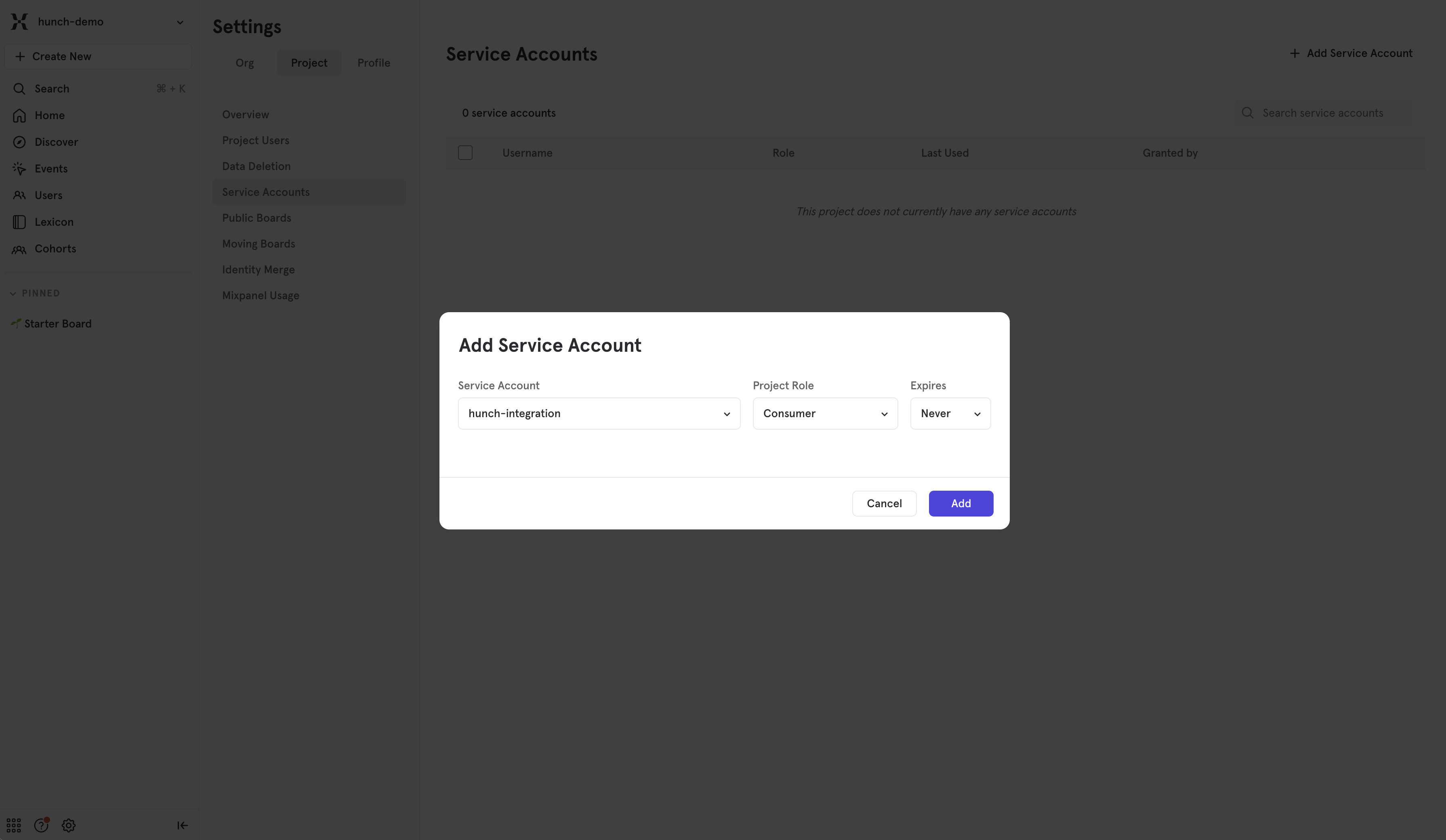
 2. Click **+Add Service Account**
3. Name it (e.g., "hunch-integration") and select the **Consumer** project role
4. Click **Add**, and copy the **Username** and **Secret**
2. Click **+Add Service Account**
3. Name it (e.g., "hunch-integration") and select the **Consumer** project role
4. Click **Add**, and copy the **Username** and **Secret**
 ***
## 2️⃣ Find Your Mixpanel Project ID & Data Residency
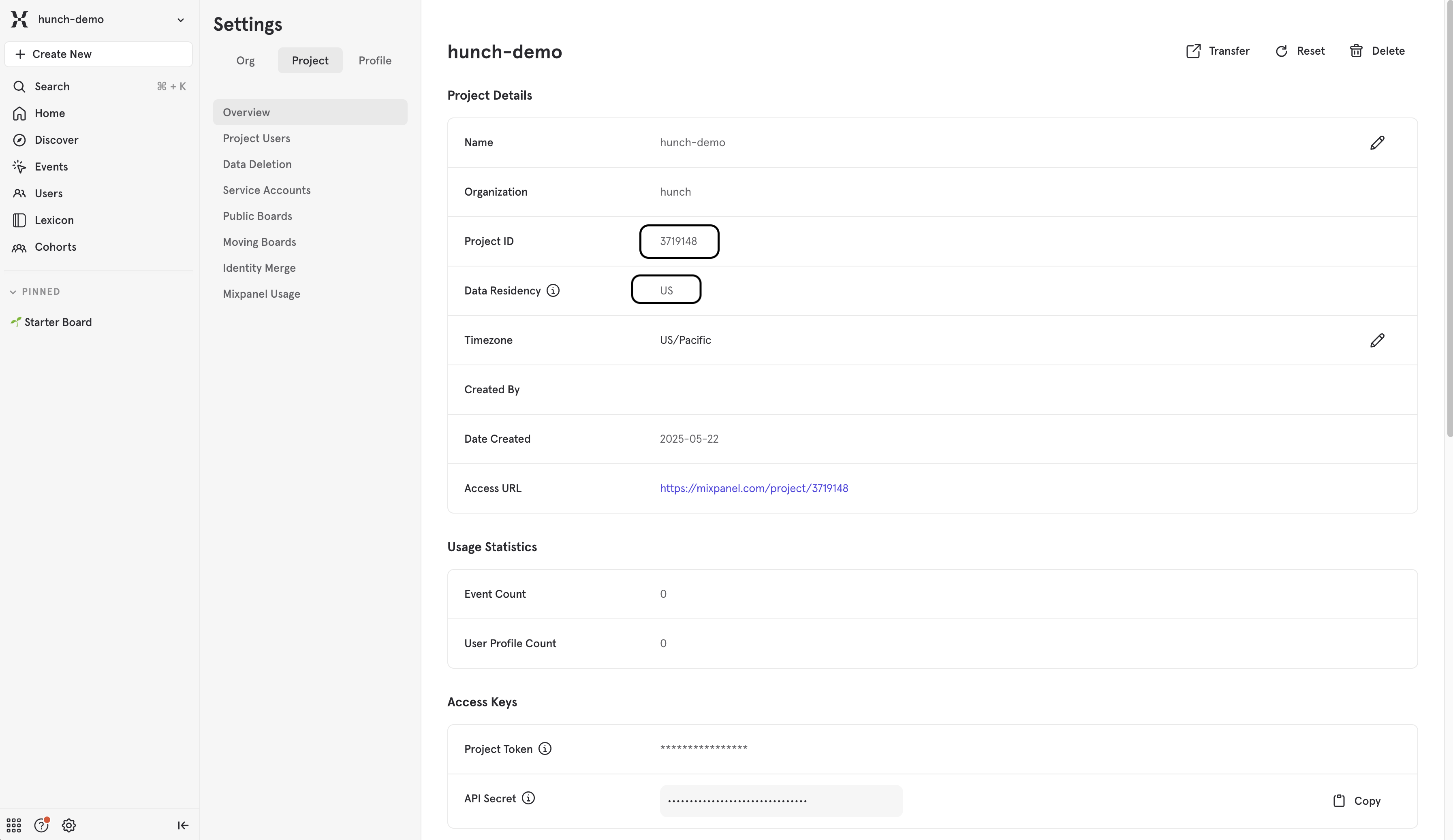
You can find your Project ID and Data Residency in the Mixpanel project settings, make sure to copy these values.
***
## 2️⃣ Find Your Mixpanel Project ID & Data Residency
You can find your Project ID and Data Residency in the Mixpanel project settings, make sure to copy these values.
 ***
## 3️⃣ Connect Mixpanel to Hunch
1. Log into [Hunch.dev](https://app.hunch.dev/login)
2. Click on your organization name > **Connect Data**
***
## 3️⃣ Connect Mixpanel to Hunch
1. Log into [Hunch.dev](https://app.hunch.dev/login)
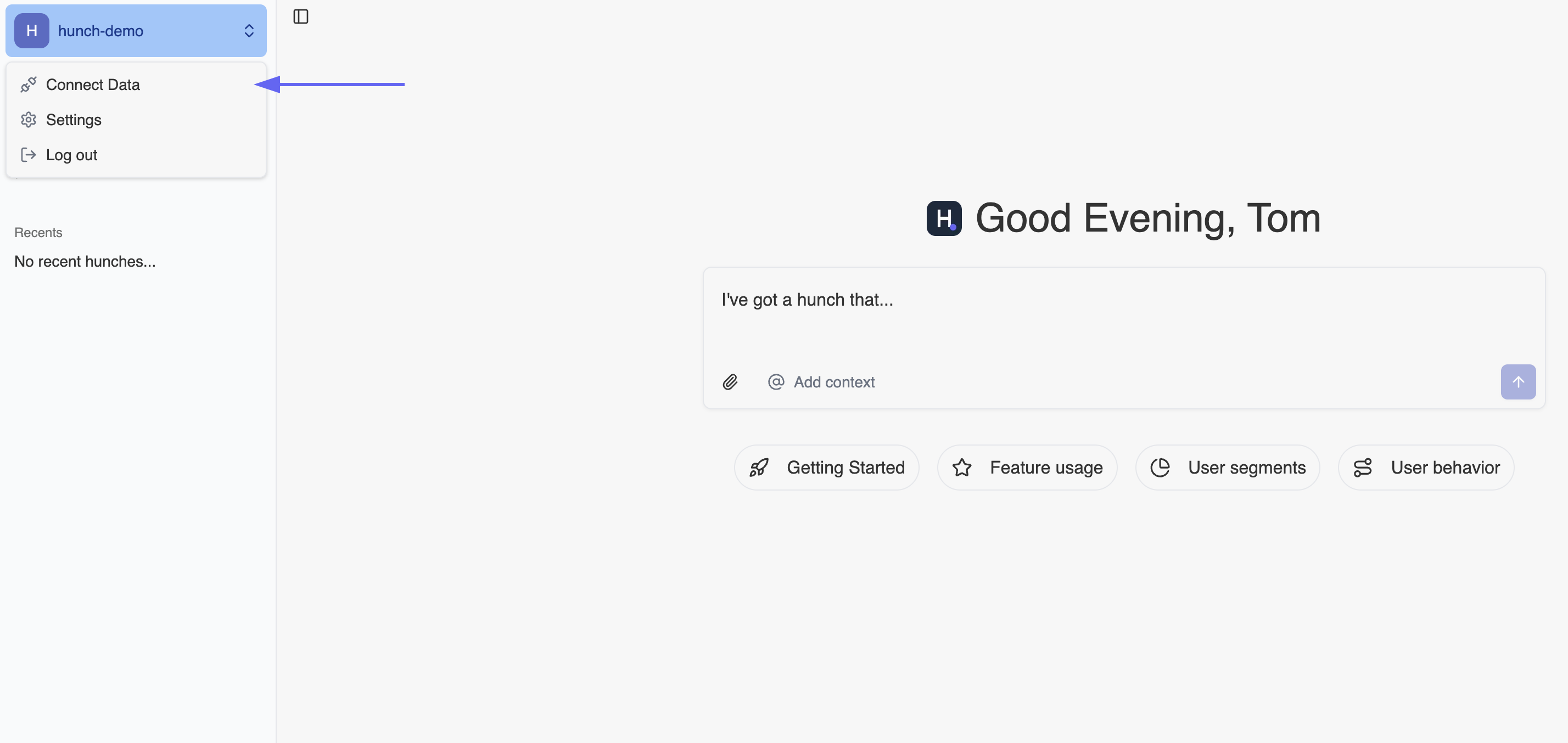
2. Click on your organization name > **Connect Data**
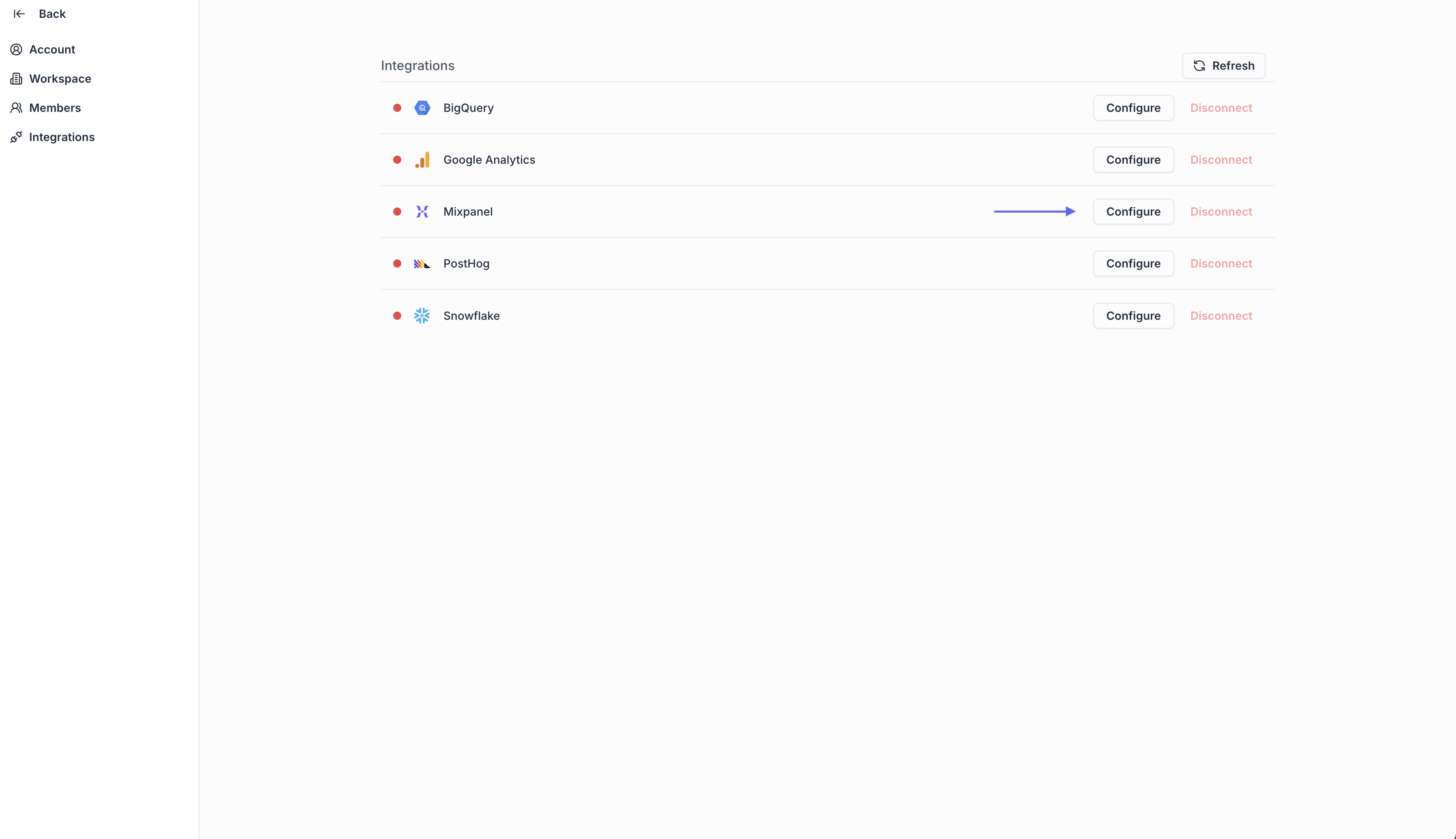
 3. Click **Configure** on the Mixpanel row
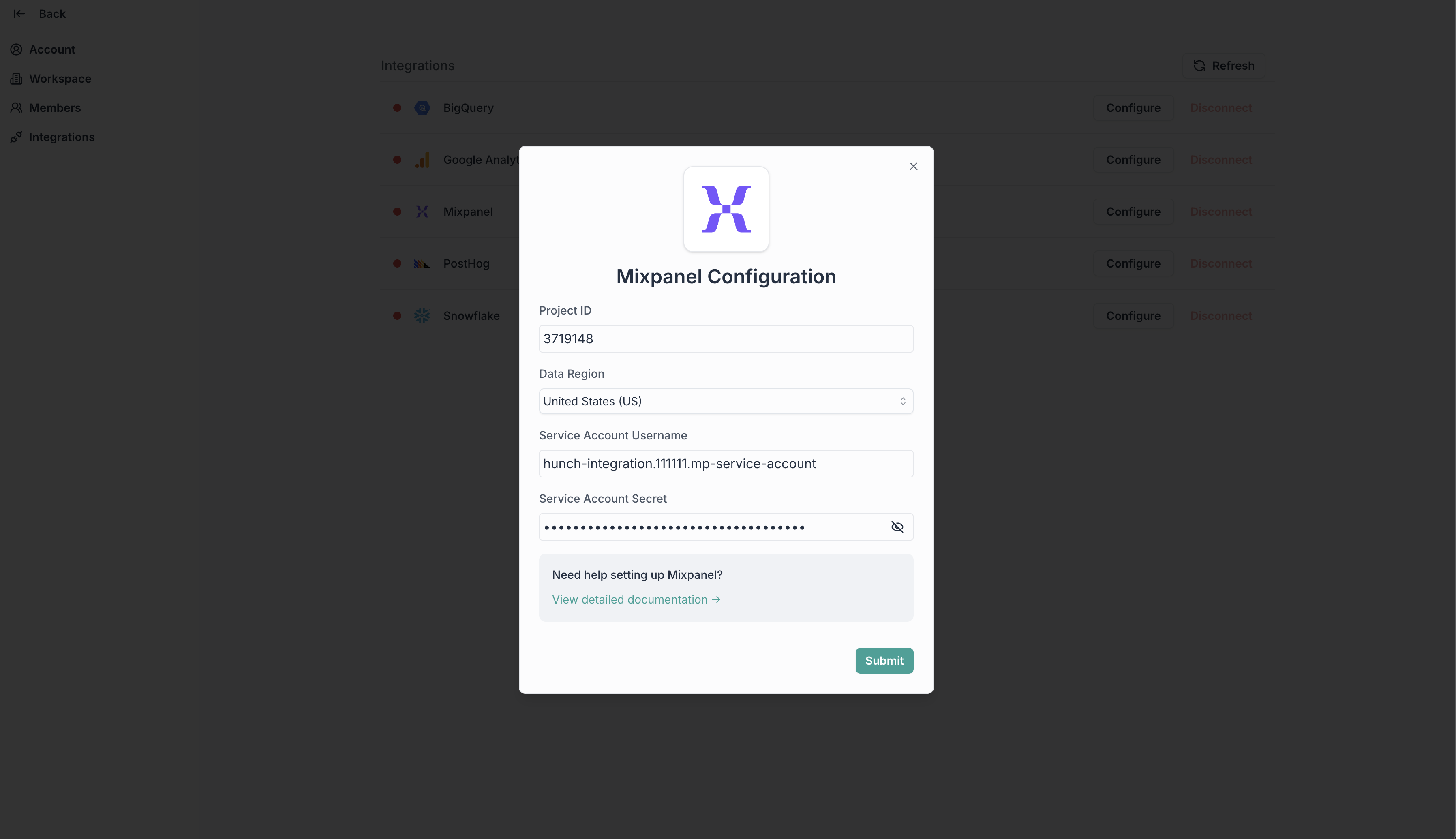
 5. Fill the form with the details from steps 1 & 2 and click **Submit**
 ***
### 🎉 Done! You're now connected
Need help? Ping us at [support@hunch.dev](mailto:support@hunch.dev)
***
## 🔒 Security Note
> Hunch uses Mixpanel's service account authentication system, providing secure access to your Mixpanel data. Your credentials are encrypted and stored securely in our system.
***
### 🎉 Done! You're now connected
Need help? Ping us at [support@hunch.dev](mailto:support@hunch.dev)
***
## 🔒 Security Note
> Hunch uses Mixpanel's service account authentication system, providing secure access to your Mixpanel data. Your credentials are encrypted and stored securely in our system.