> ## Documentation Index
> Fetch the complete documentation index at: https://docs.hunch.dev/llms.txt
> Use this file to discover all available pages before exploring further.
# PostHog
> Connect your PostHog account to Hunch
This guide will help you securely connect your PostHog account to Hunch in just a few minutes.
***
## ✅ What You'll Need
* PostHog Account
* PostHog Project ID
* PostHog Project Region
* PostHog API Key
***
## 1️⃣ Find Your Project ID and Region
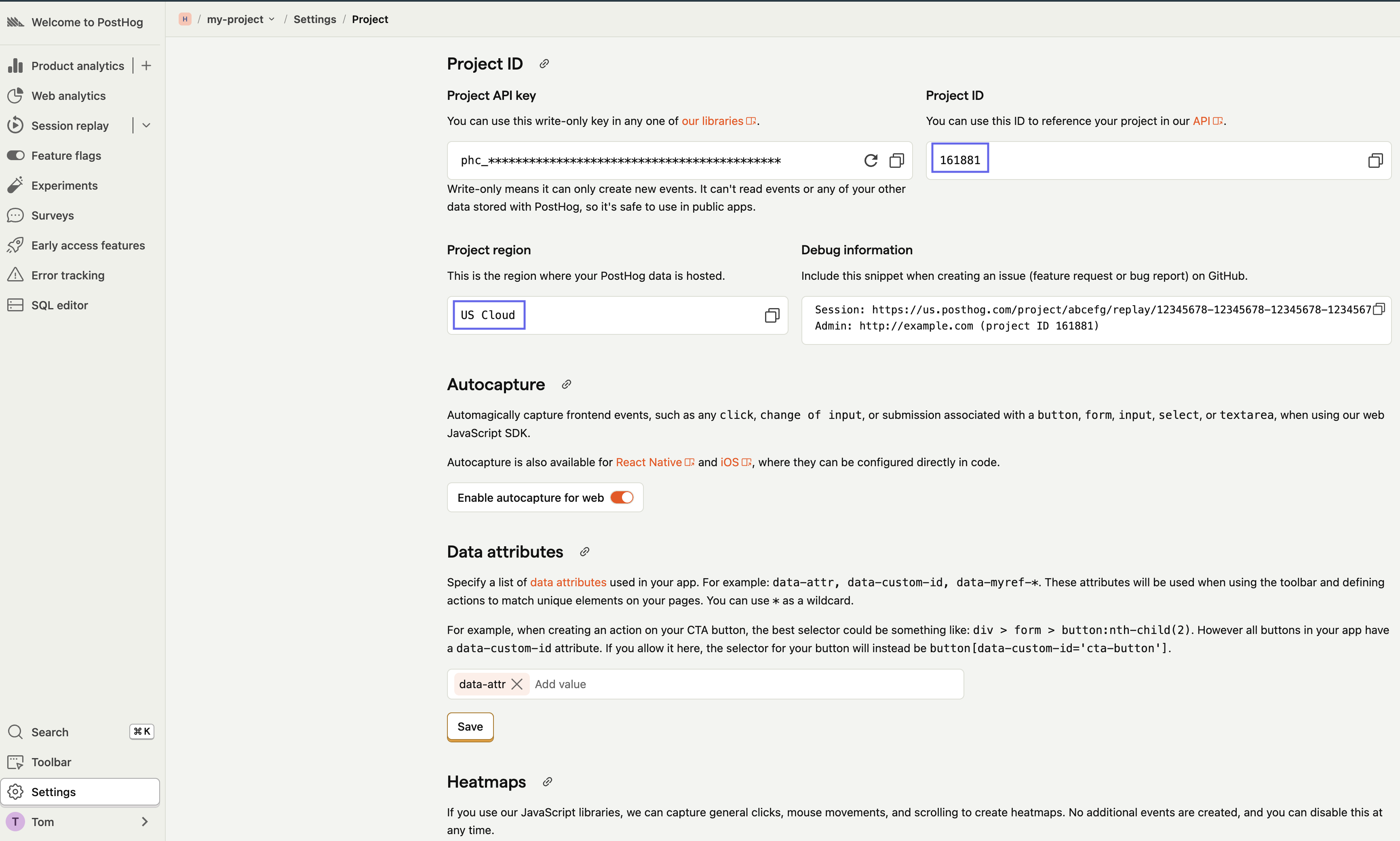
1. Log into your [PostHog account](https://app.posthog.com)
2. In PostHog, click on **⚙️ Settings** > scroll down until you see **Project ID**
3. Copy the **Project ID**, and the **Project region**
{" "}
 ***
## 2️⃣ Create an API key in PostHog
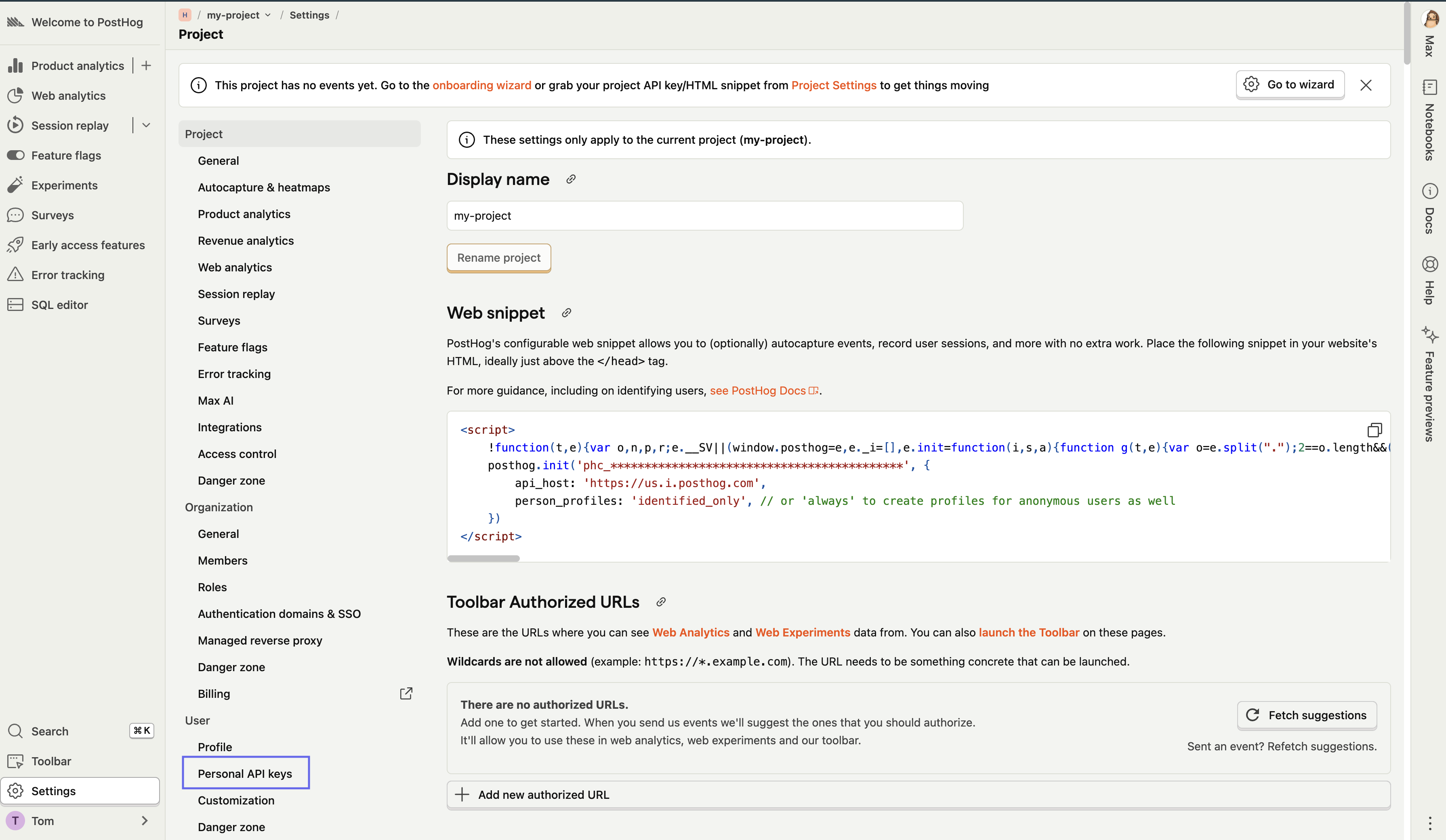
2. In PostHog, click on **⚙️ Settings** > In the settings pane, click on **Personal API keys**
{" "}
***
## 2️⃣ Create an API key in PostHog
2. In PostHog, click on **⚙️ Settings** > In the settings pane, click on **Personal API keys**
{" "}
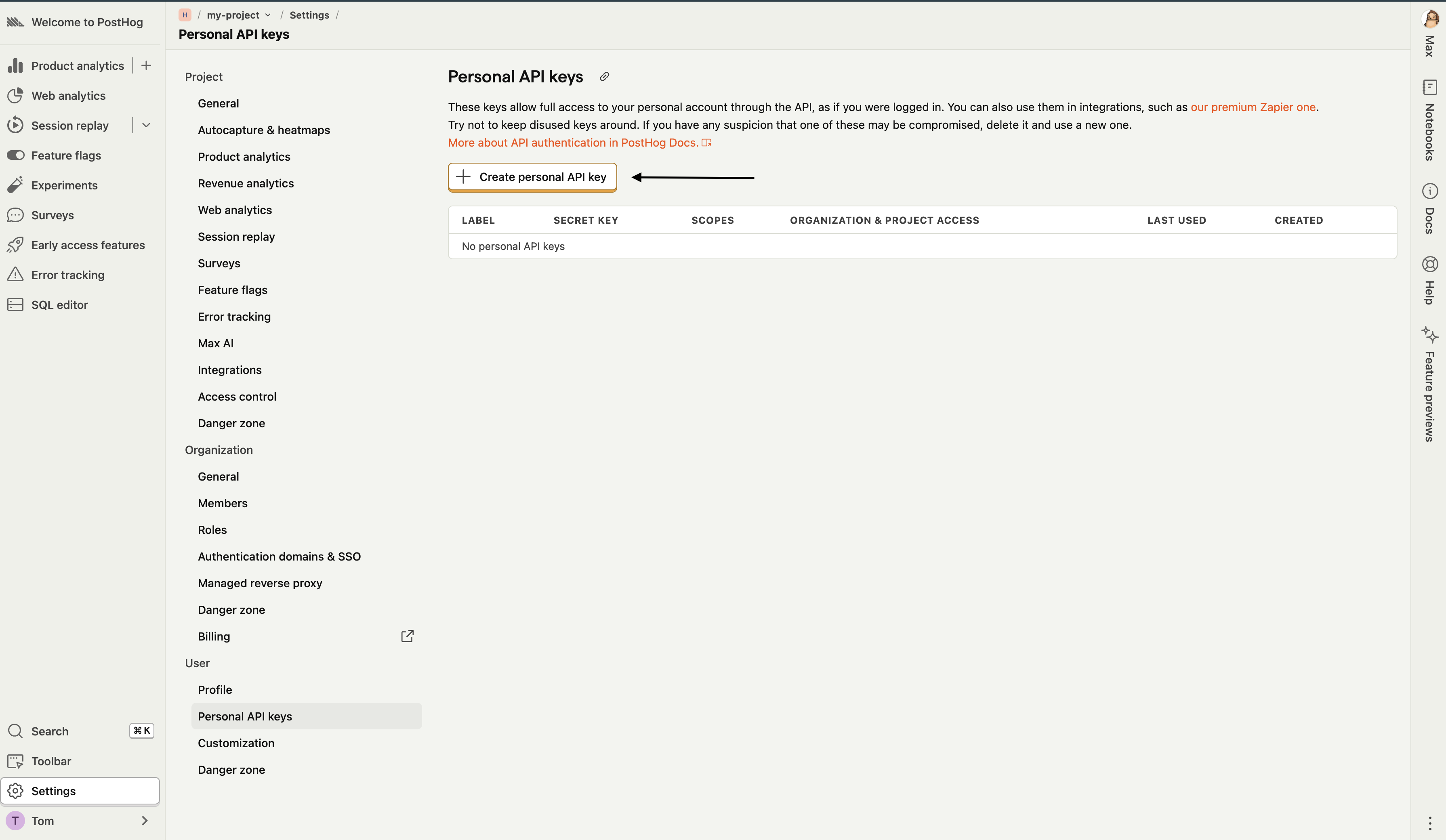
 3. Click **Create new API key**
{" "}
3. Click **Create new API key**
{" "}
 4. Give your API key a descriptive name (e.g., "hunch-integration")
5. For **Organization & project access**, click on **Projects** > In the select box, choose the desired project you want Hunch to analyze
{" "}
4. Give your API key a descriptive name (e.g., "hunch-integration")
5. For **Organization & project access**, click on **Projects** > In the select box, choose the desired project you want Hunch to analyze
{" "}
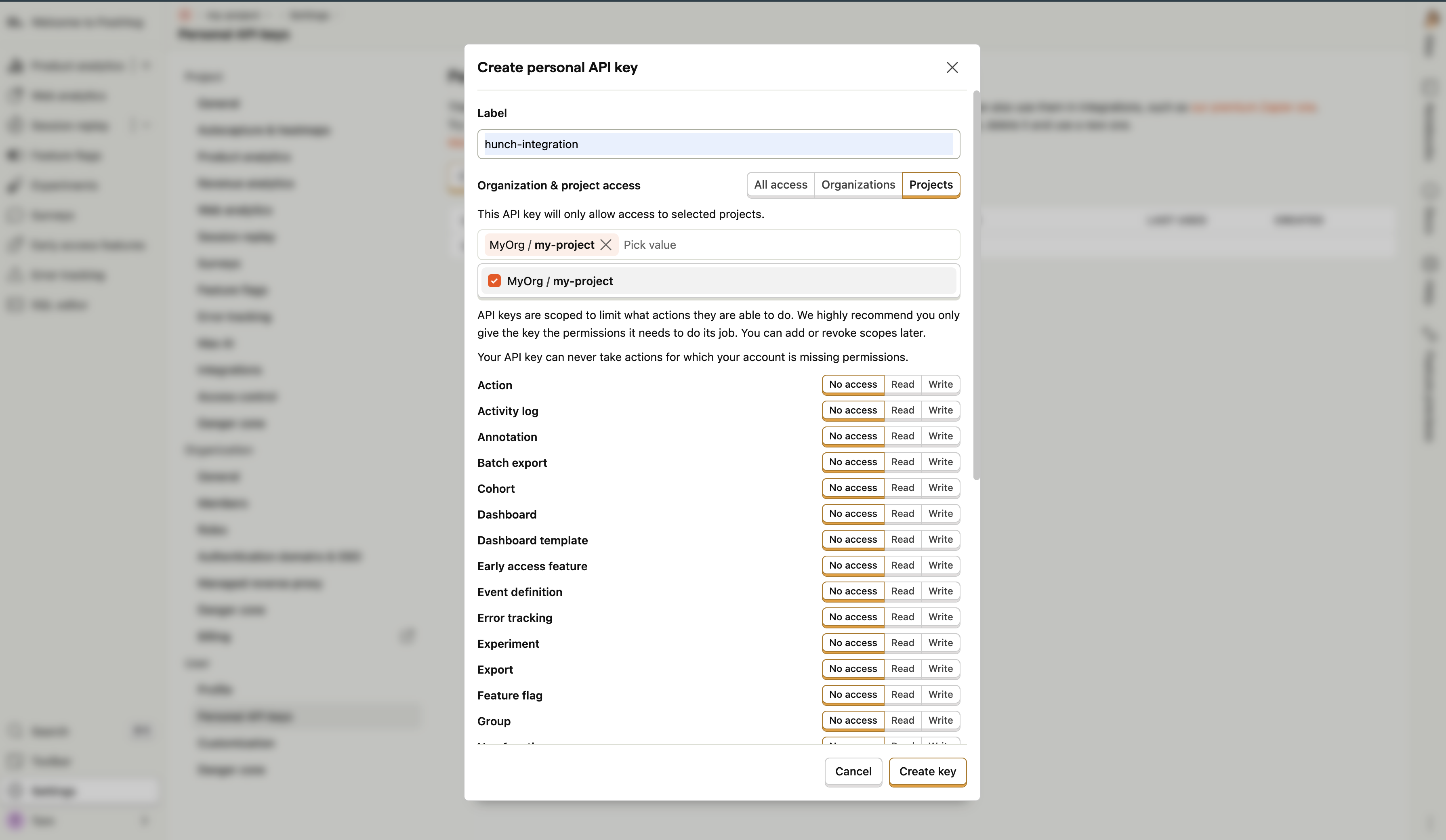 6. From the available permissions, enable **Read** permissions to:
* **Query**
* **Property definition**
* **Event definition**
6. From the available permissions, enable **Read** permissions to:
* **Query**
* **Property definition**
* **Event definition**
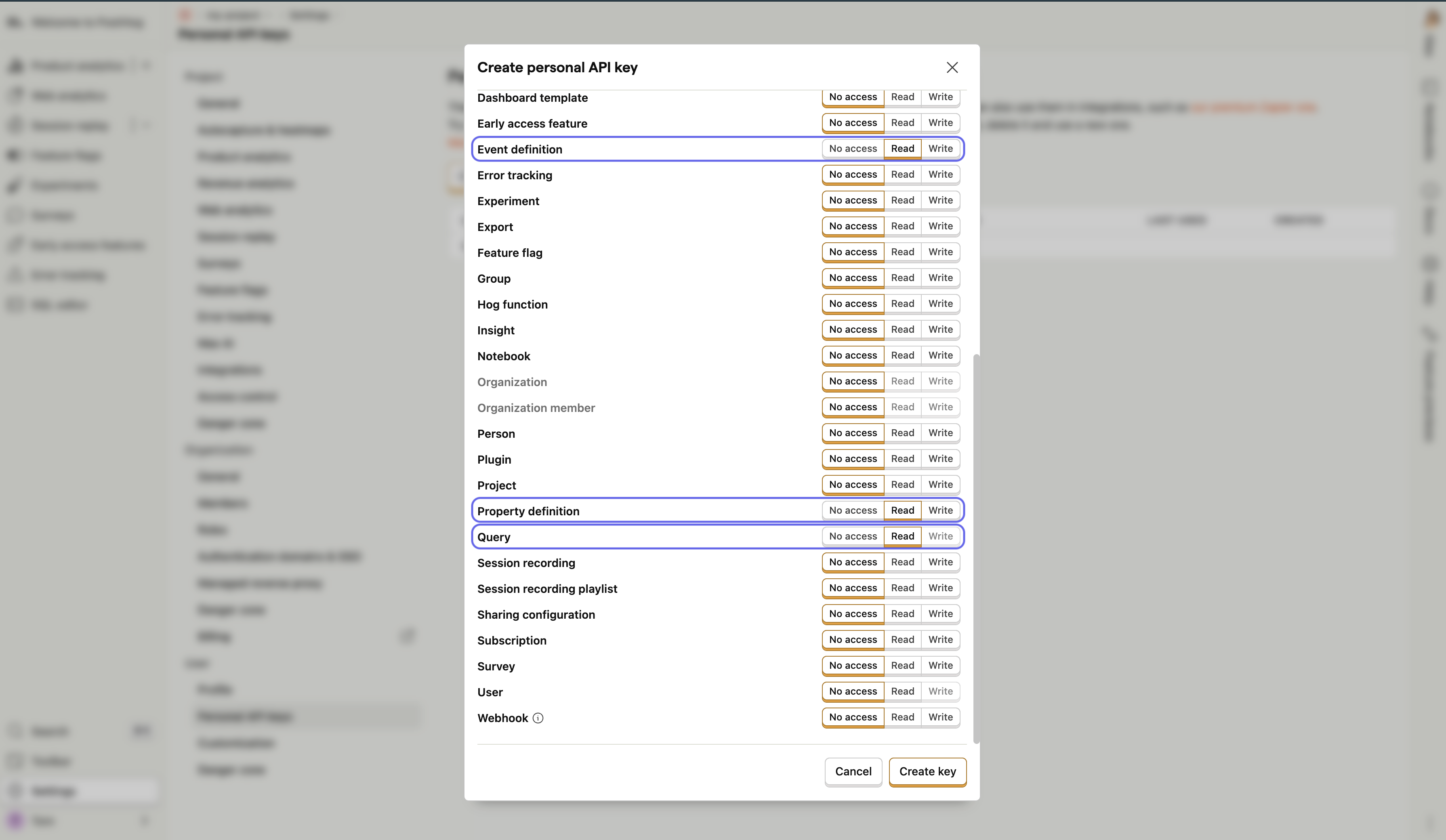 7. Click on **Create key** > Copy the generated API key and store it securely - **you won't be able to see it again!**
***
## 3️⃣ Connect PostHog to Hunch
1. Log into [Hunch.dev](https://app.hunch.dev/login)
2. Click on your organization name > **Connect Data**
7. Click on **Create key** > Copy the generated API key and store it securely - **you won't be able to see it again!**
***
## 3️⃣ Connect PostHog to Hunch
1. Log into [Hunch.dev](https://app.hunch.dev/login)
2. Click on your organization name > **Connect Data**
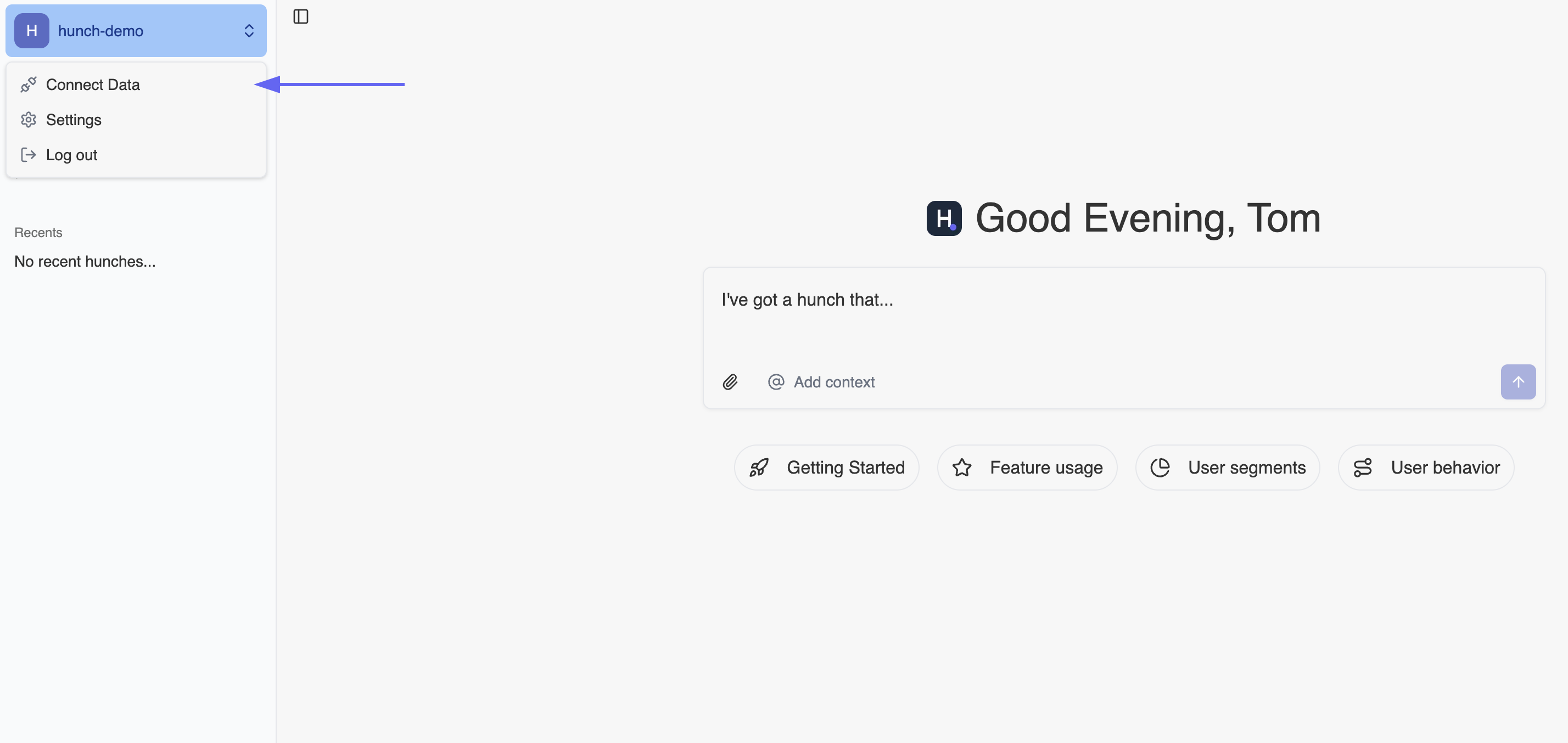 3. Click **Configure** on the PostHog row
{" "}
3. Click **Configure** on the PostHog row
{" "}
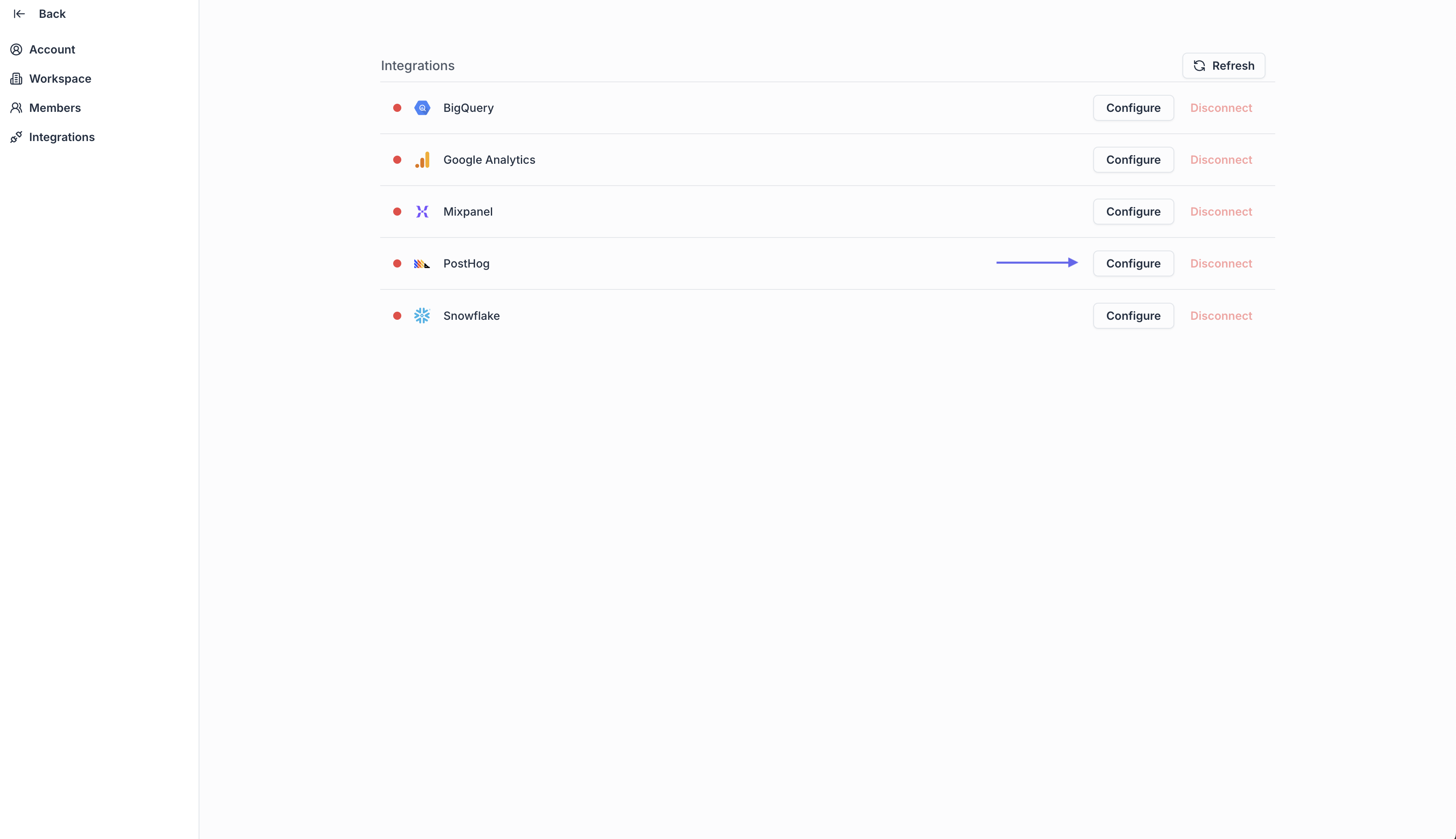 4. Fill the form with:
* Project ID
* Project Region
* API Key
{" "}
4. Fill the form with:
* Project ID
* Project Region
* API Key
{" "}
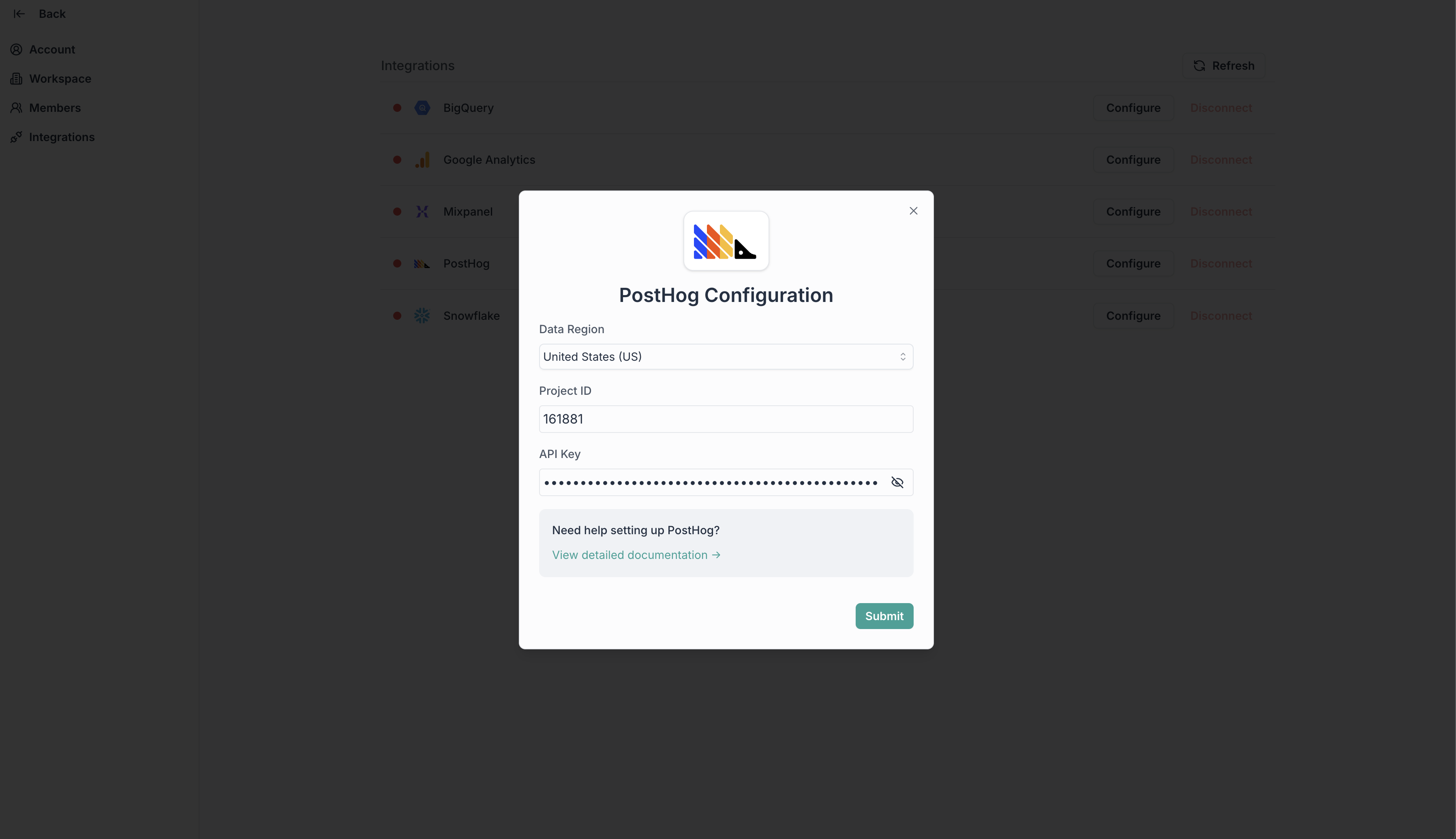 5. Click **Submit**
***
### 🎉 Done! You're now connected
Need help? Ping us at [support@hunch.dev](mailto:support@hunch.dev)
***
## 🔒 Security Note
> Hunch uses API keys to securely access your PostHog data. We recommend using a read-only API key for maximum security. Your API key is encrypted and stored securely in our system.
5. Click **Submit**
***
### 🎉 Done! You're now connected
Need help? Ping us at [support@hunch.dev](mailto:support@hunch.dev)
***
## 🔒 Security Note
> Hunch uses API keys to securely access your PostHog data. We recommend using a read-only API key for maximum security. Your API key is encrypted and stored securely in our system.