> ## Documentation Index
> Fetch the complete documentation index at: https://docs.hunch.dev/llms.txt
> Use this file to discover all available pages before exploring further.
# Quickstart
> **TL;DR** — Connect data → start a chat → get answers.
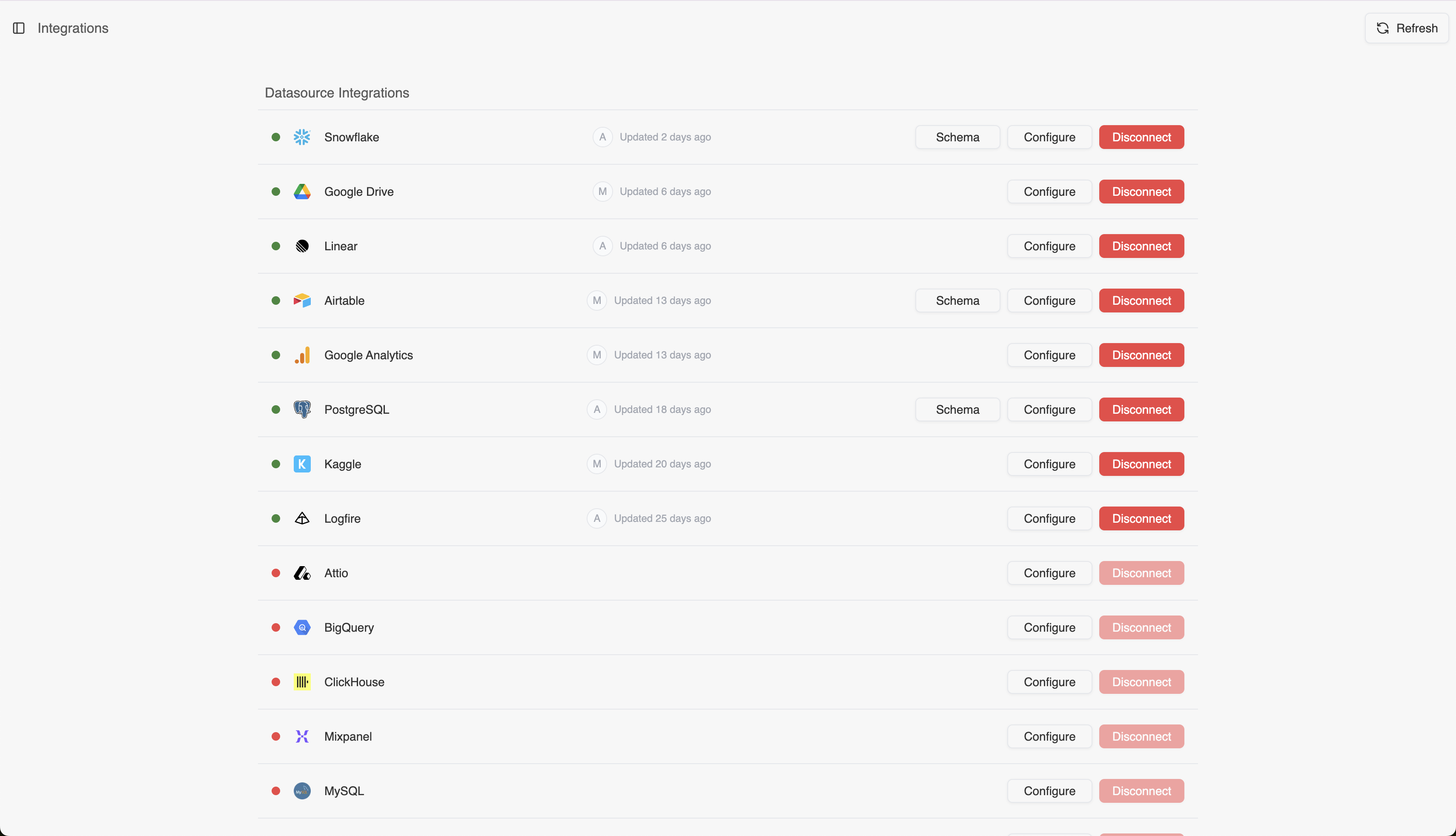
1. **Connect your data**\
Visit the **[Integrations](https://app.hunch.dev/settings/integrations)** page, pick a data source, complete the integration details, and you're all set.
For detailed info about connecting data, visit the [Data Sources](/pages/data-sources) page.
 2. **Start a chat**\
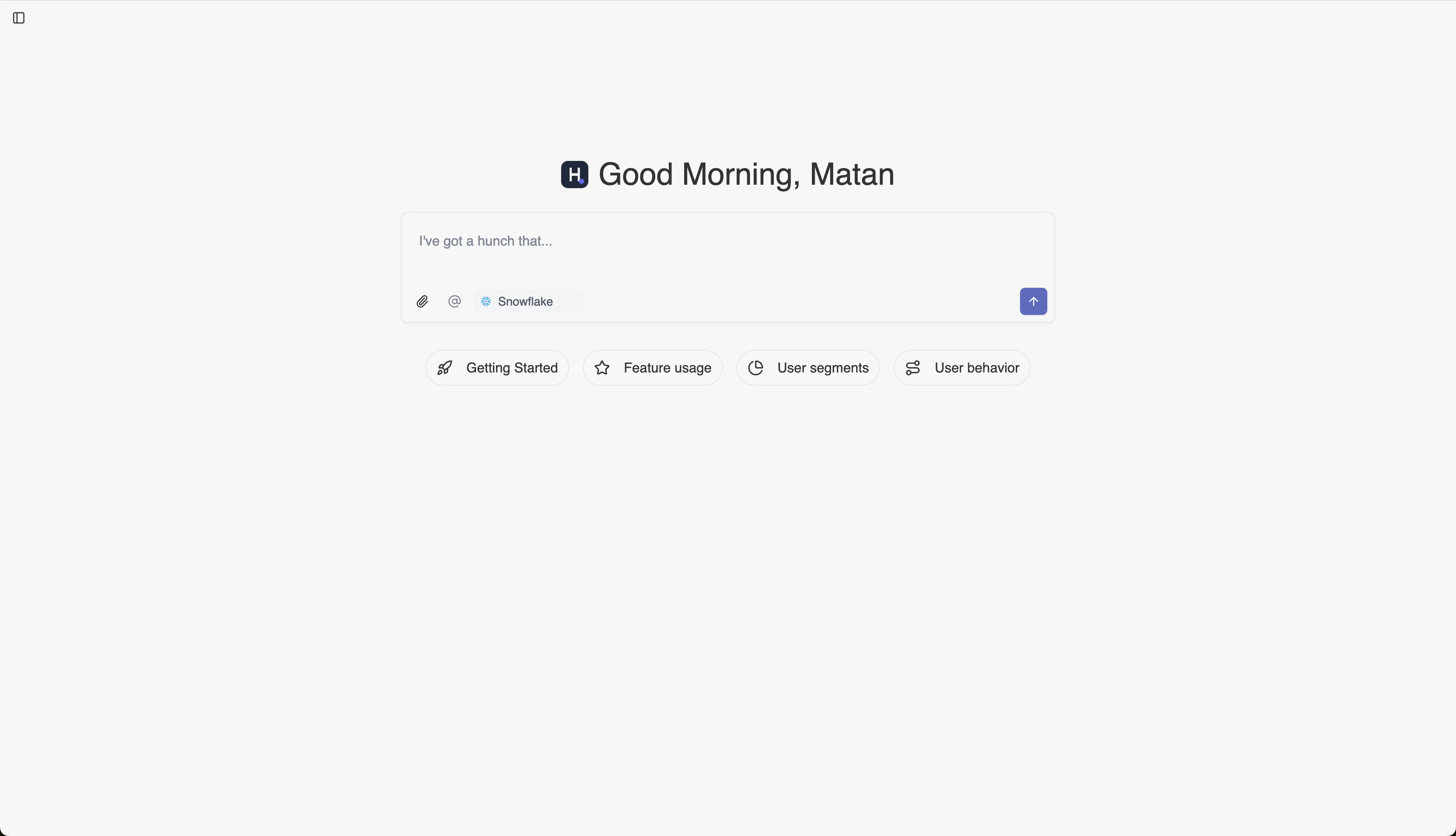
Open the Hunch platform, and ask your first question in the text box "I've got a hunch that...", or use one of the suggested prompts under "Getting started".
You can also upload csv files, or tag a data source that you want to query.
2. **Start a chat**\
Open the Hunch platform, and ask your first question in the text box "I've got a hunch that...", or use one of the suggested prompts under "Getting started".
You can also upload csv files, or tag a data source that you want to query.
 3. **Need transparency? Track the agent's work**\
Every analysis in Hunch is fully transparent. When the agent is running, you can:
* Click on the "Agent running..." indicator to see the live progress
* Track the full generated code during the analysis
* Export queries to run them directly in your data warehouse / jupyter notebook
* See referenced context files used by the agent during the thought process
The agent will show you exactly what it's doing in real-time, making every step of the analysis process visible and auditable.
3. **Need transparency? Track the agent's work**\
Every analysis in Hunch is fully transparent. When the agent is running, you can:
* Click on the "Agent running..." indicator to see the live progress
* Track the full generated code during the analysis
* Export queries to run them directly in your data warehouse / jupyter notebook
* See referenced context files used by the agent during the thought process
The agent will show you exactly what it's doing in real-time, making every step of the analysis process visible and auditable.